 JayNest
Something Isn't Working: How to Contact Us and What to Write
- iPhone and iPad
- Browser
Write to info@jaynest.app. We can help fastest when you include the app's version number, your device and a short description of what happened.
On iPhone
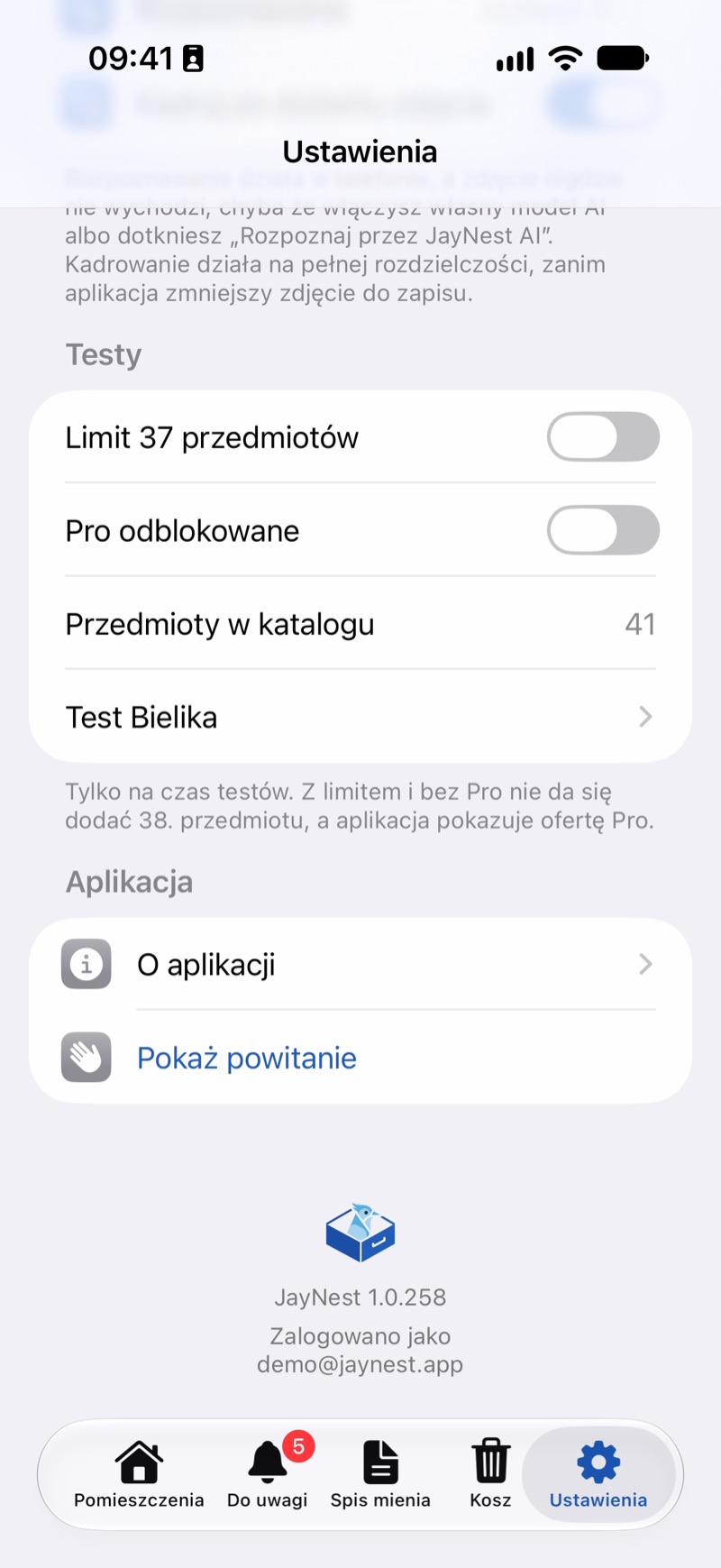
- Open Settings and scroll to the very bottom. Under the logo is the version number, such as "JayNest 1.0.258", and if you have an account, also the address you sign in with. The same number is in About, in the Version row.
- If you can, take a screenshot of the problem.
- Write to info@jaynest.app. Include:
- the version number,
- your phone model and system version, such as iPhone 16, iOS 26,
- what you're doing, what happens then, and what you expected,
- the screenshot.
In the Browser
The version number is at the bottom of every page, such as "Version 1.0.258". Include it in your message along with your browser and system, such as Chrome on Windows 11 or Safari on a Mac.
Good to Know
- If the app shows Can't Open Data instead of your catalog, don't delete it. Without an account, your data is only on your phone and would disappear together with the app. Copy down or take a photo of the message and write to us.
- Don't send us your account password. We don't need it to help you.
- You can report a translation error with Report a Translation Error in About, and suggest a missing category with Suggest a Category on the Categories screen (on your phone, in Settings). Both open a message to us.
- Send questions and requests about your data, such as deleting it, from your account's email address, so we know it's about your account (Where is my data?).