 JayNest
Weekly Summary: How to Set It Up or Turn It Off
- iPhone and iPad
JayNest won't flood you with notifications. It sends one a week, by default on Sunday at 6:00 PM, and only when there's something to report: returns, expiry dates and warranties that are overdue or due in the next 7 days, and supplies running low. Weeks with nothing like that are skipped.
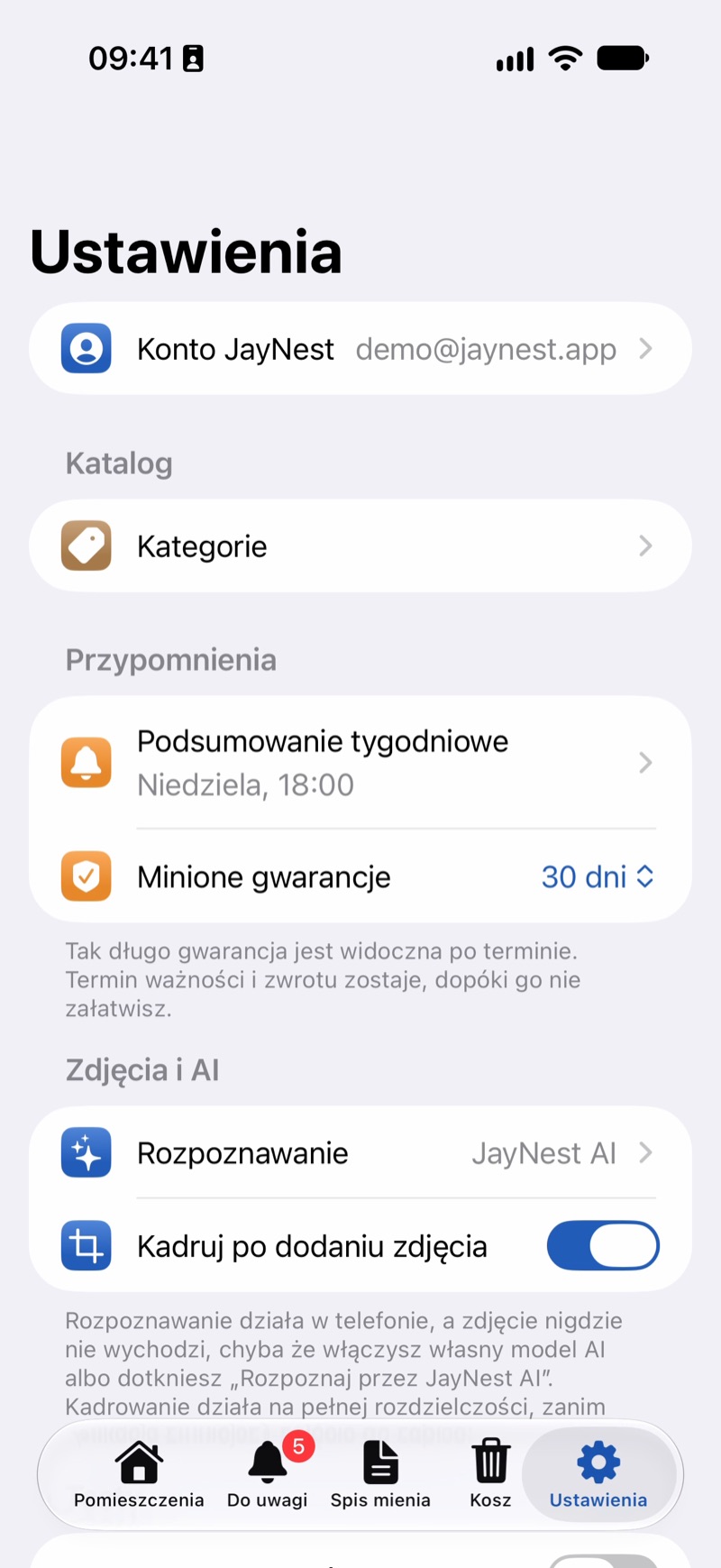
Tapping the notification opens the Needs Attention tab, where you can see everything.
On iPhone
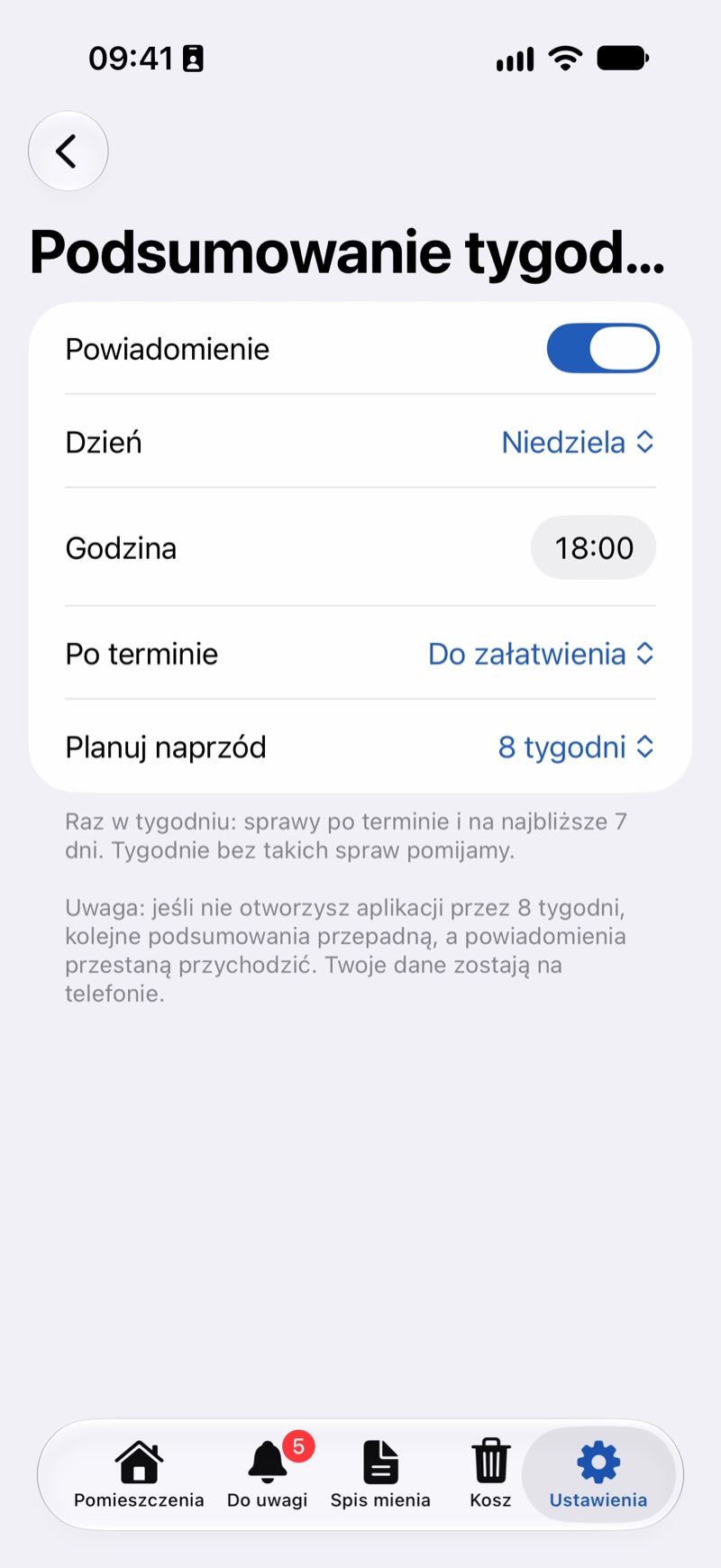
- Open the Settings tab and, in the Reminders group, tap Weekly Summary.
- Choose the Day and Time.
- In Overdue, decide how long to keep reminding you about something overdue: Until Handled or for a set number of weeks.
- Plan Ahead sets how many weeks ahead your phone prepares the notifications (more under “Good to Know”).
- To turn the summary off, turn off Notification. In Settings, Weekly Summary will then show Off.
Good to Know
- The app asks for permission to send notifications only once your catalog has its first date (a warranty, expiry date or return date), not on first launch. If you decline then, the Weekly Summary screen shows a Turn On Notifications in iPhone Settings button.
- The summary works without an account and without internet: your phone works it out itself.
- On iPhone, notifications are prepared in advance, for as many weeks as you set in Plan Ahead, and refreshed every time you open the app. If you don't open JayNest during that time, the notifications stop coming; your data stays on the phone.
- How long past warranties stay on the list is set separately in Settings → Past Warranties (“Needs Attention”: warranties, expiry dates and returns).