 JayNest
Lending: Who Has It, Until When, and an SMS Reminder
- iPhone and iPad
- Browser
You mark an item as lent out, choose the person and the return date. Once the date has passed, the item appears in the Needs Attention tab, and a single tap opens a ready-made, friendly SMS.
On iPhone
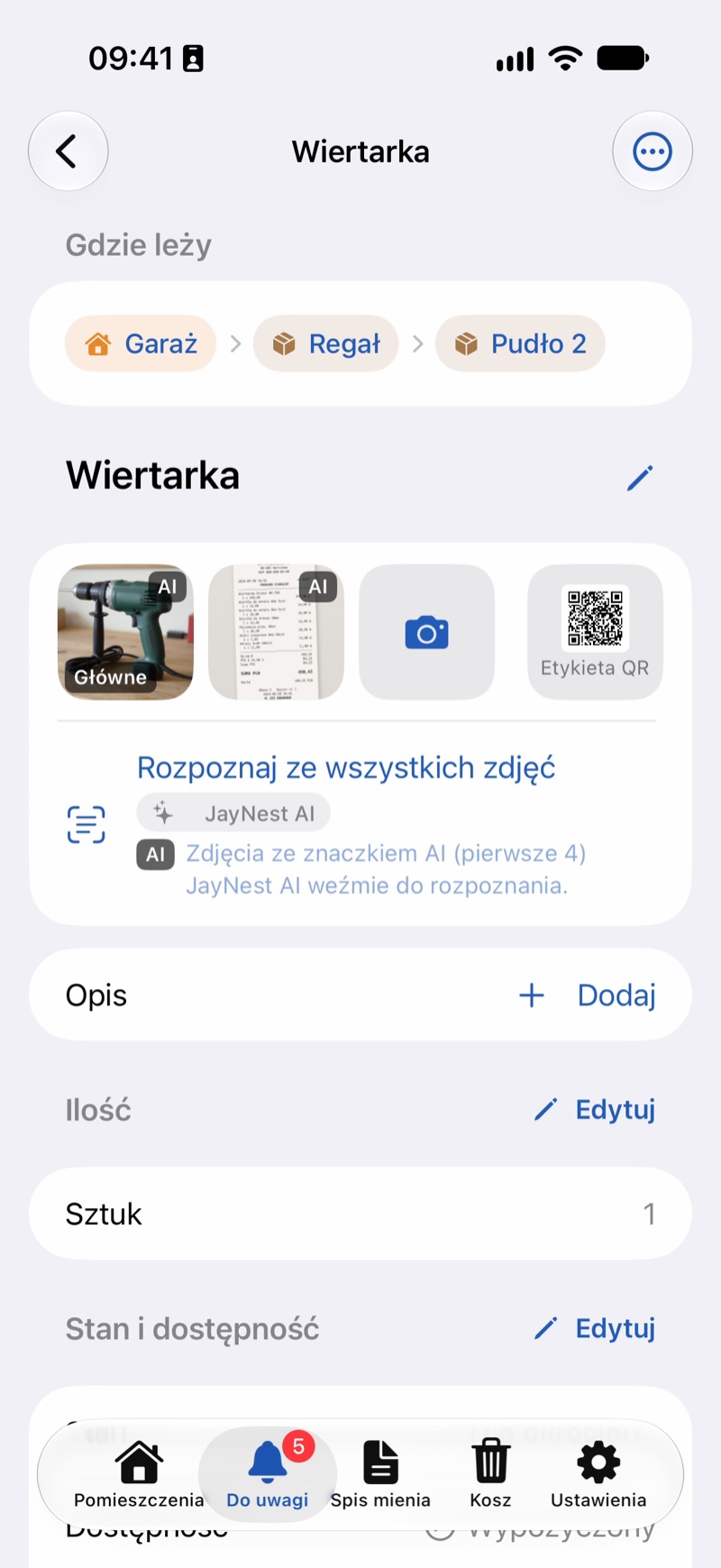
- Open the item, e.g. a drill, and tap Lend or Send for Repair. The Condition and Availability group opens for editing, with the availability set to Lent Out and today's date in the Since field.
- Tap the contact icon to choose a person from Contacts, or just type a name.
- Set the Return Date and tap Save.
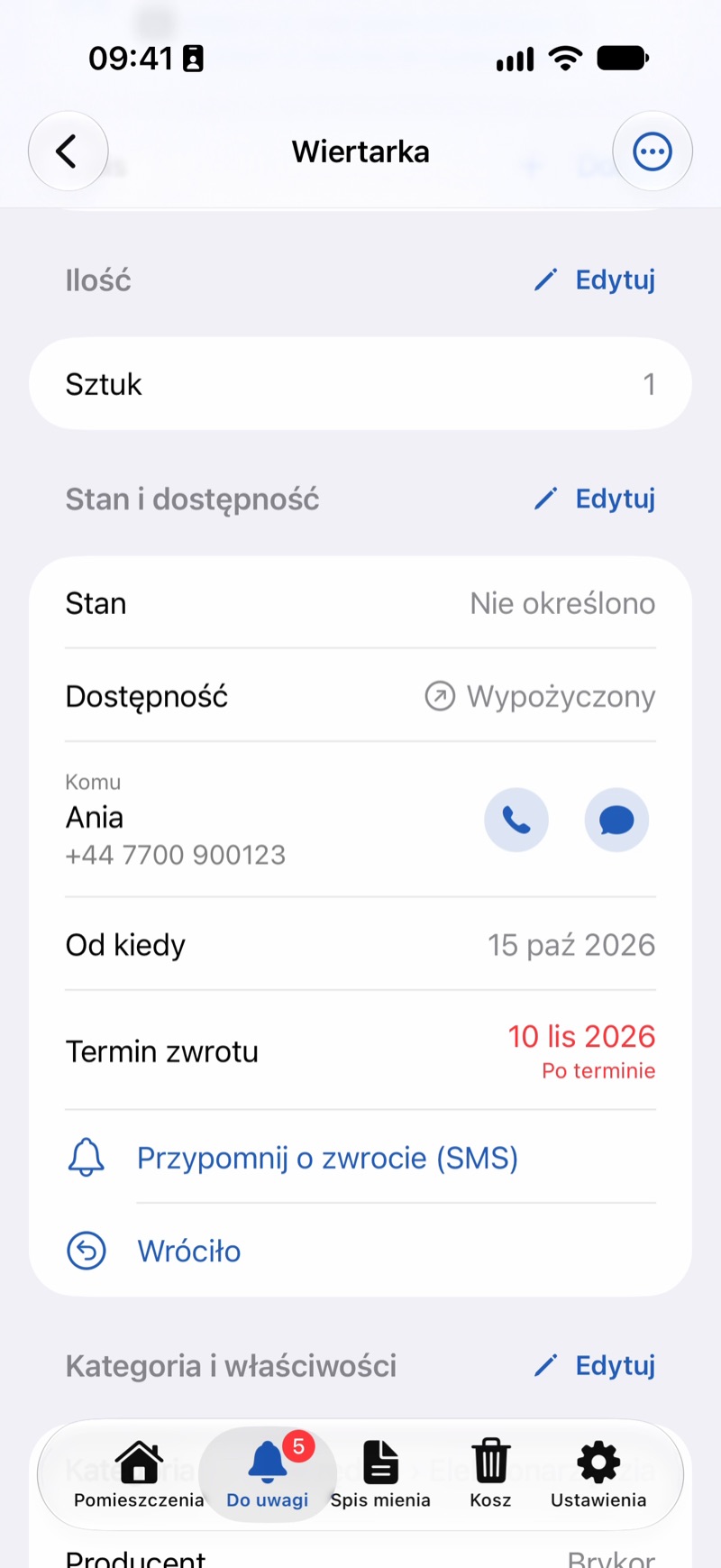
- The item screen now shows who has it, since when and until when. If the person has a phone number in Contacts, there are buttons to call and to send a message next to the name.
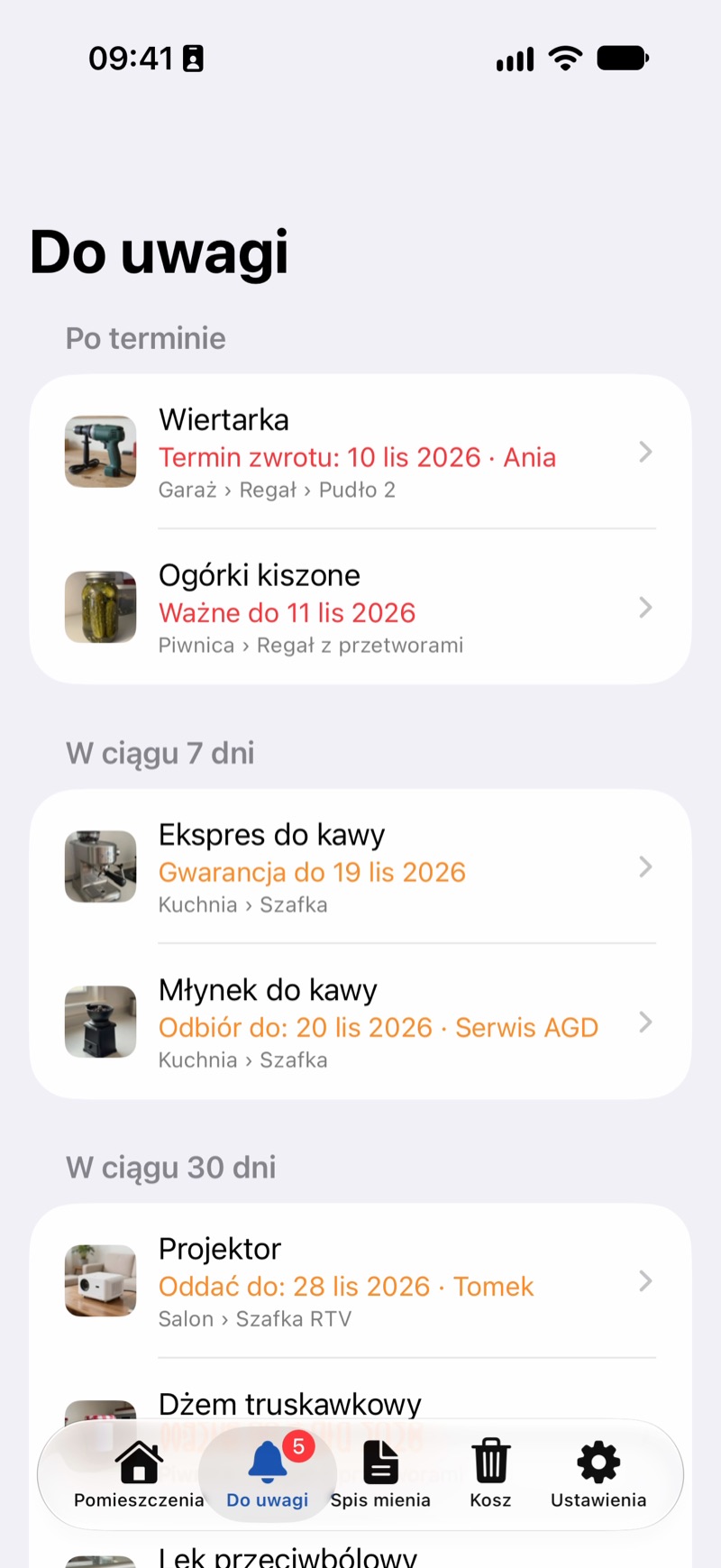
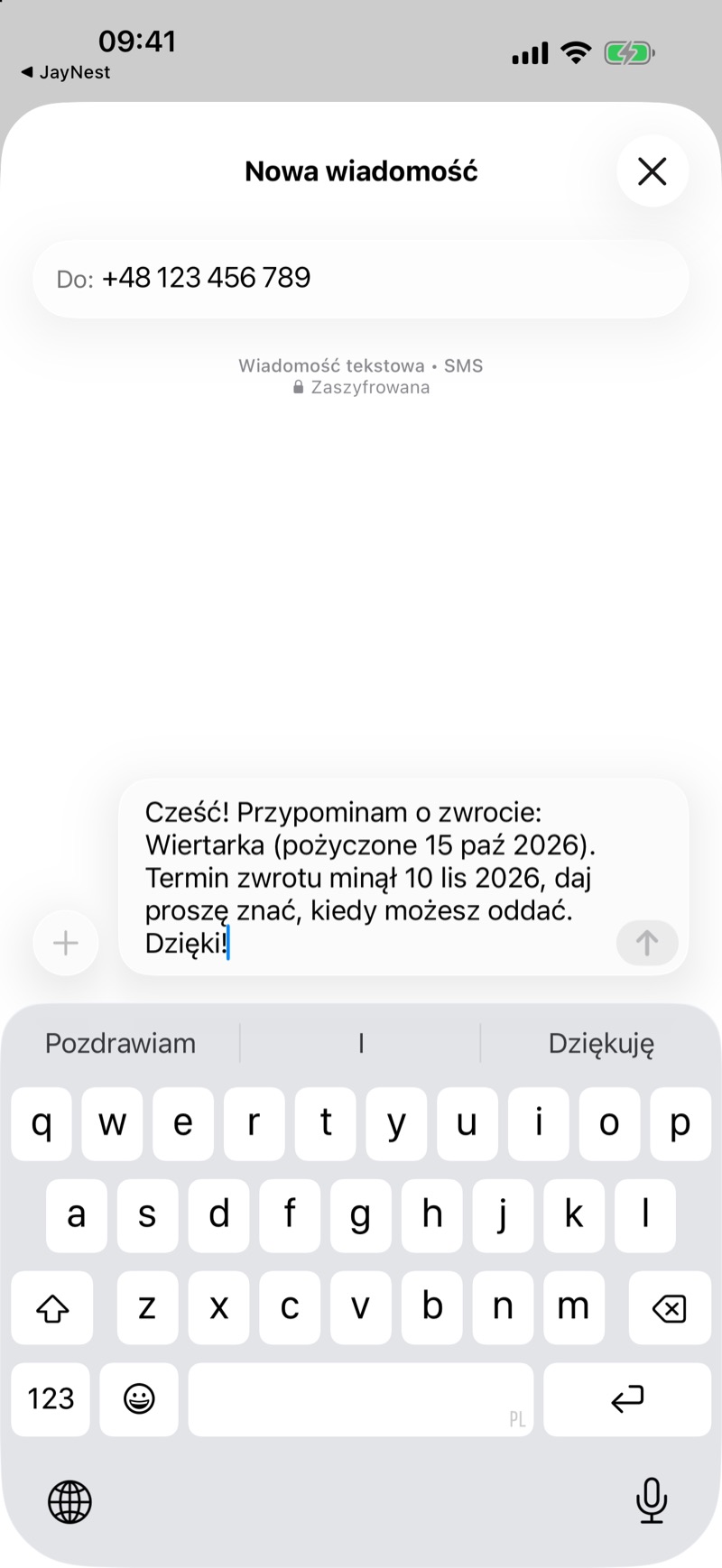
- Once the date has passed, the item appears in the Needs Attention tab. To send a reminder, tap Return Reminder (SMS) on the item screen: a message opens saying what was lent, since when and until when. All you have to do is send it. This button is shown when a phone number is saved for the person.
- When the item comes back, tap Returned.
In the Browser
- On the item page, click Edit next to the Condition and Availability group.
- In the Availability field, choose Lent Out, enter who has it, and set the Return Date. Click Save.
- When the item comes back, click Returned on the item page.
You send the SMS reminder from your phone, because the browser on a computer can't send text messages.
Good to Know
- You can mark an item sent for repair (In Repair) and an item you borrowed from someone (Borrowed) the same way. For a borrowed item, instead of Returned there's Returned to Owner, which moves it to the Trash after you confirm.
- From Contacts, JayNest saves only the person you chose: the name, the phone number and the contact's ID on this phone.
- Search also finds an item by the name of the person who borrowed it (Search and filters).
- All overdue and upcoming returns are in the Needs Attention tab (“Needs Attention”: warranties, expiry dates and returns).