 JayNest
Search and Filters
- iPhone and iPad
- Browser
You know you have it, but where? Type a few letters and JayNest shows the matching items together with where they are. Filters help when there are many results, e.g. when you're looking for a drill bit of a specific diameter.
On iPhone
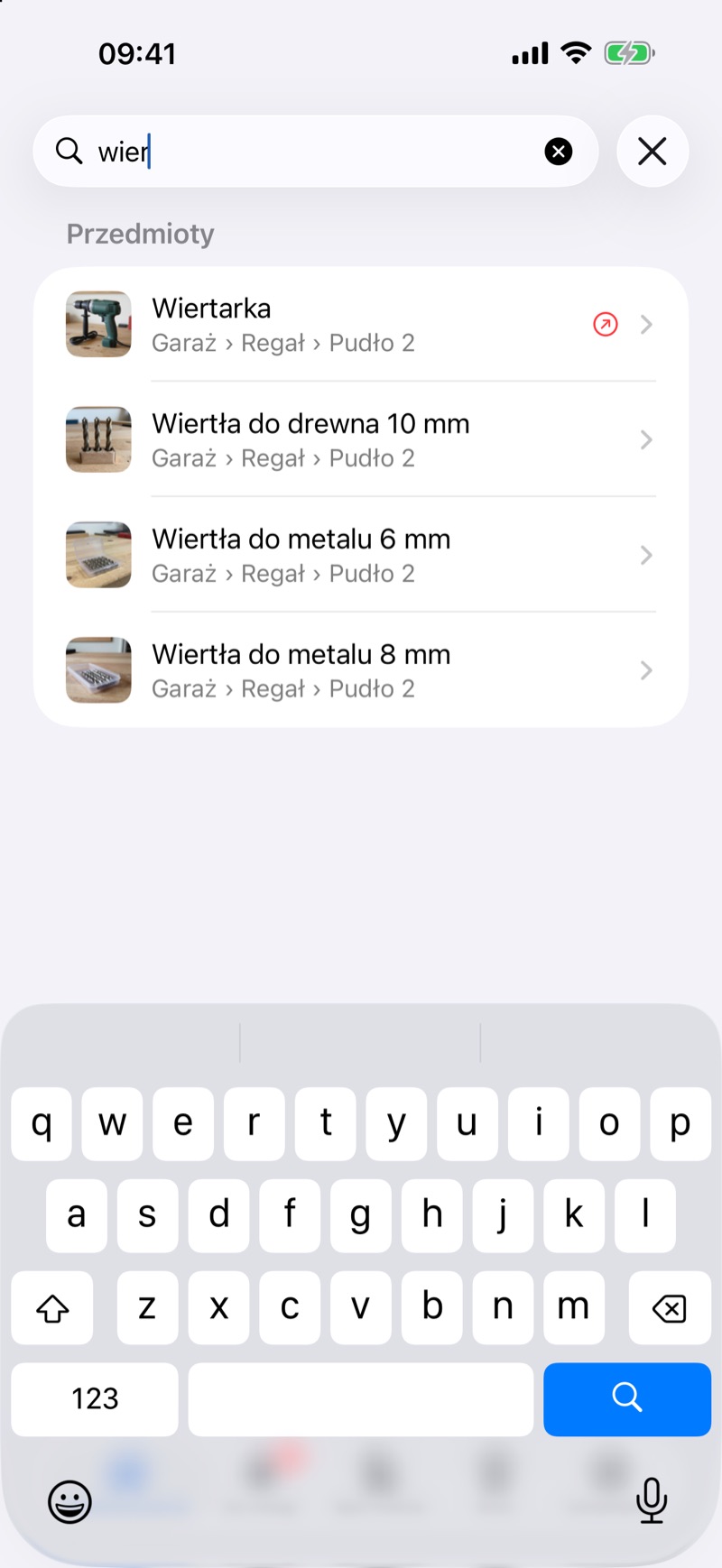
- On the Rooms screen, tap the Search items and containers field and type a few letters, e.g. “drill”. Results appear right away, and under each name you see the full path, e.g. Garage › Shelf › Box 2.
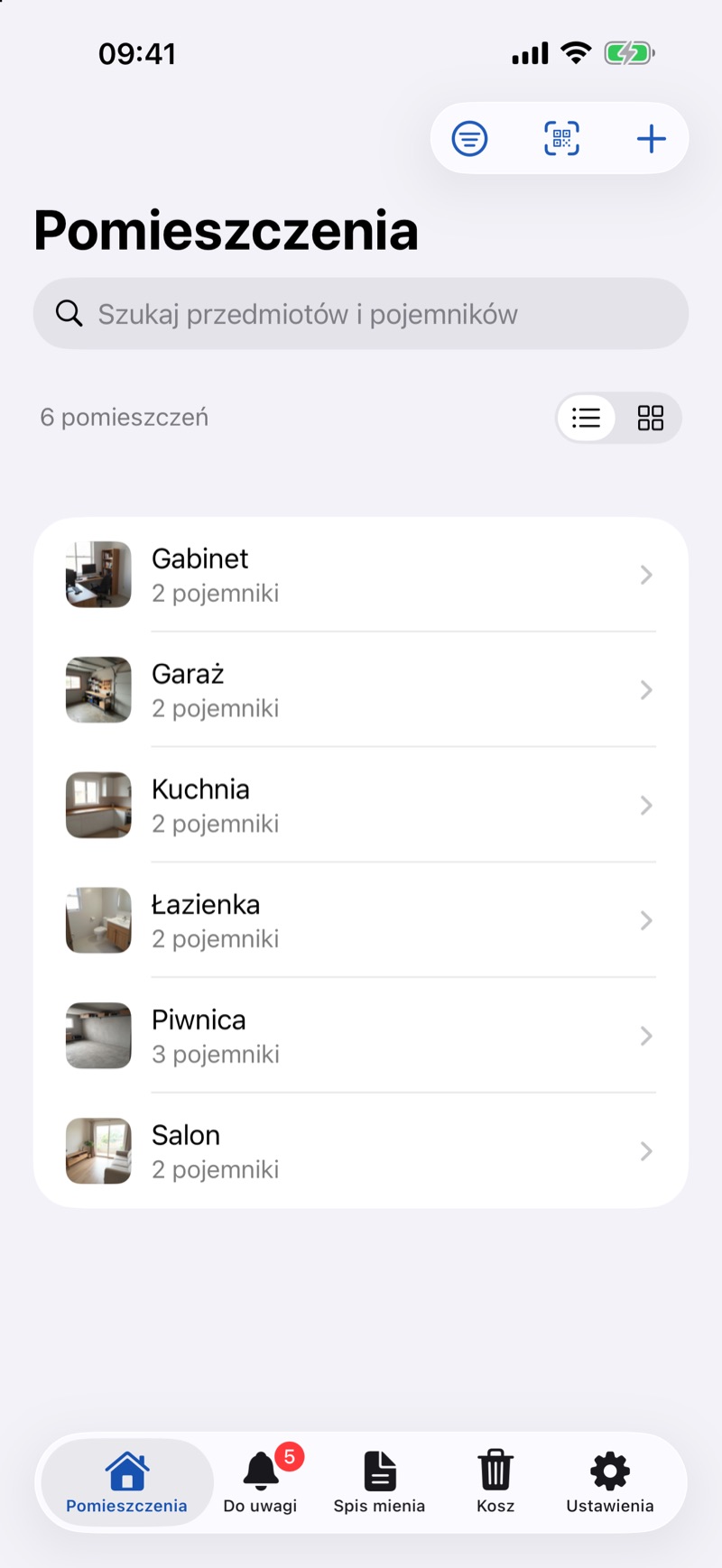
- To narrow the results, tap the filter button at the top of the screen.
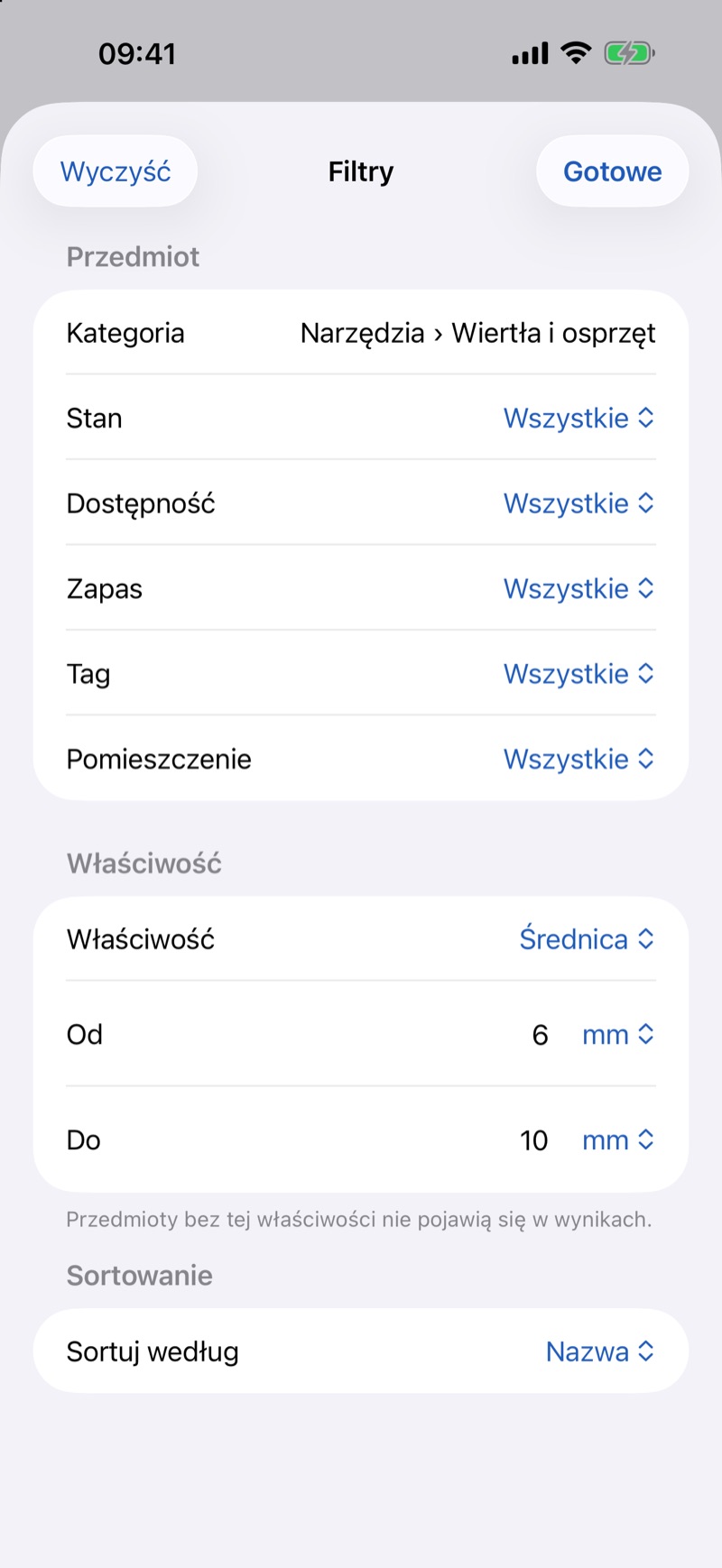
- In Filters, choose what you're looking for: Category, Condition, Availability, Supply, Tag or Room. In the Property group, pick a property, e.g. diameter, and enter a range in the from and to fields, e.g. 6 to 10 mm. Sort By sets the order: Name, Recently Added, Nearest Deadline, Runs Out or a chosen property. Tap Done.
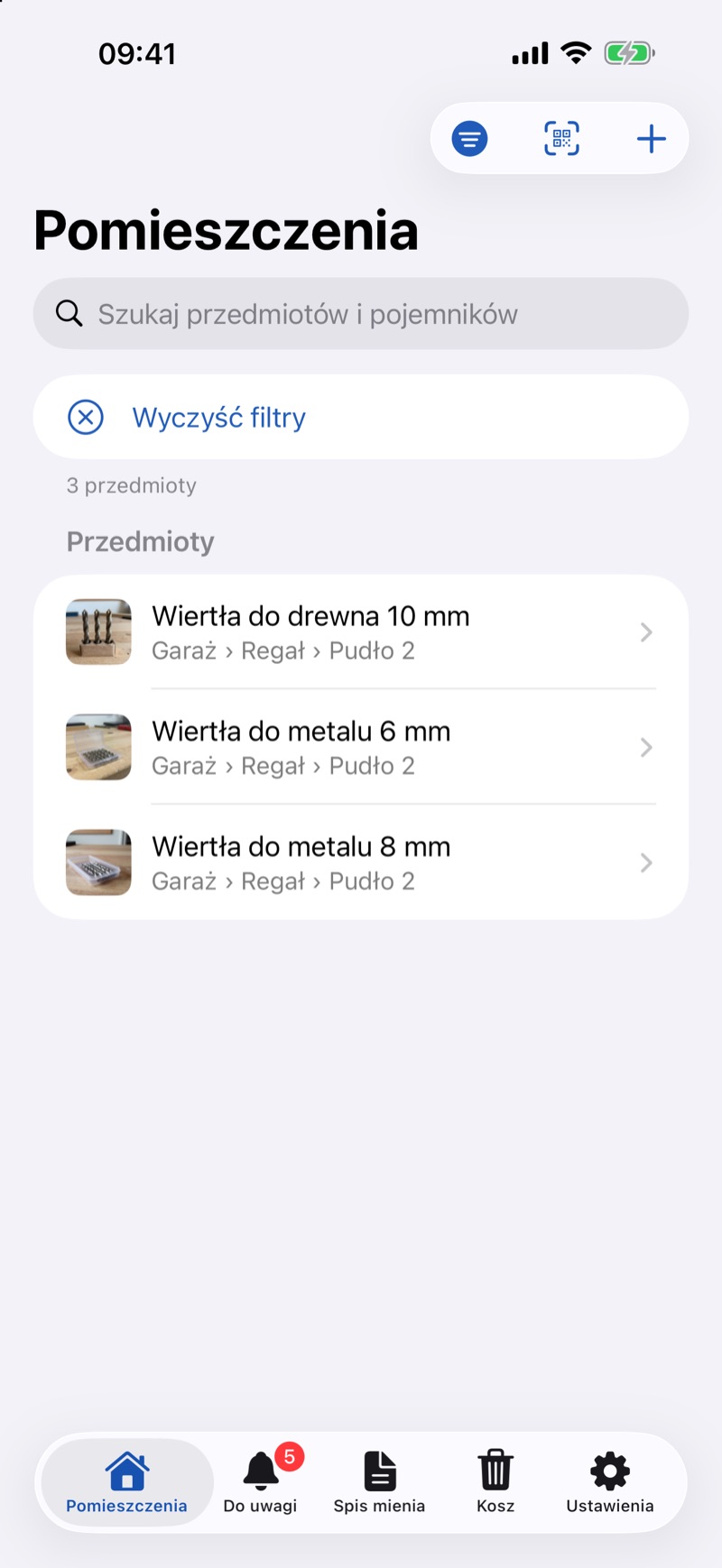
- Only the matching items stay on the list. Clear Filters takes you back to the full list.
Filters also work without any text: filters alone can show, for example, everything you've lent out.
In the Browser
- Type a few letters in the Search the catalog field in the menu on the left. The results page opens.
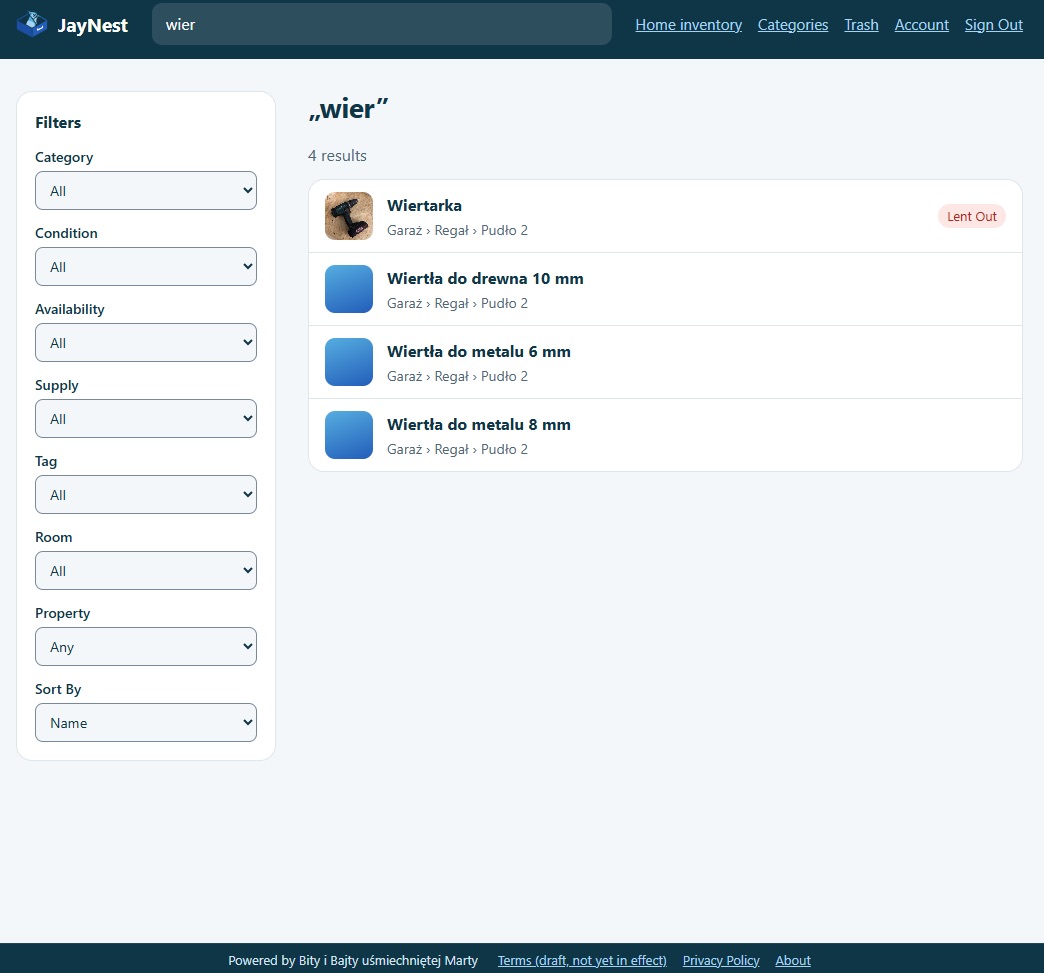
- Next to the results are the Filters: Category, Condition, Availability, Supply, Tag, Room, Property and Sort By. Changes take effect right away.
- Once a filter is set, Clear Filters appears below them.
The address of the results page includes the chosen filters, so the Back button works and you can bookmark the results.
Good to Know
- Search looks in names and descriptions, tags, categories, property values, label codes, the people you lent things to, and stores. It finds containers by name, description and code.
- Upper and lower case don't matter. You can also type a label code with a space or a dash (Label code under the QR).
- A main category filter includes its subcategories, e.g. Tools also shows drill bits.
- With a property filter, items without that property don't appear in the results.
- Sorting by a property with a list of options follows the order of the list, not the alphabet, e.g. clothing sizes from XS to XXL.
- You set filters each time; the app doesn't save them.