 JayNest
Rooms, Containers and Items: How to Organize Them
- iPhone and iPad
- Browser
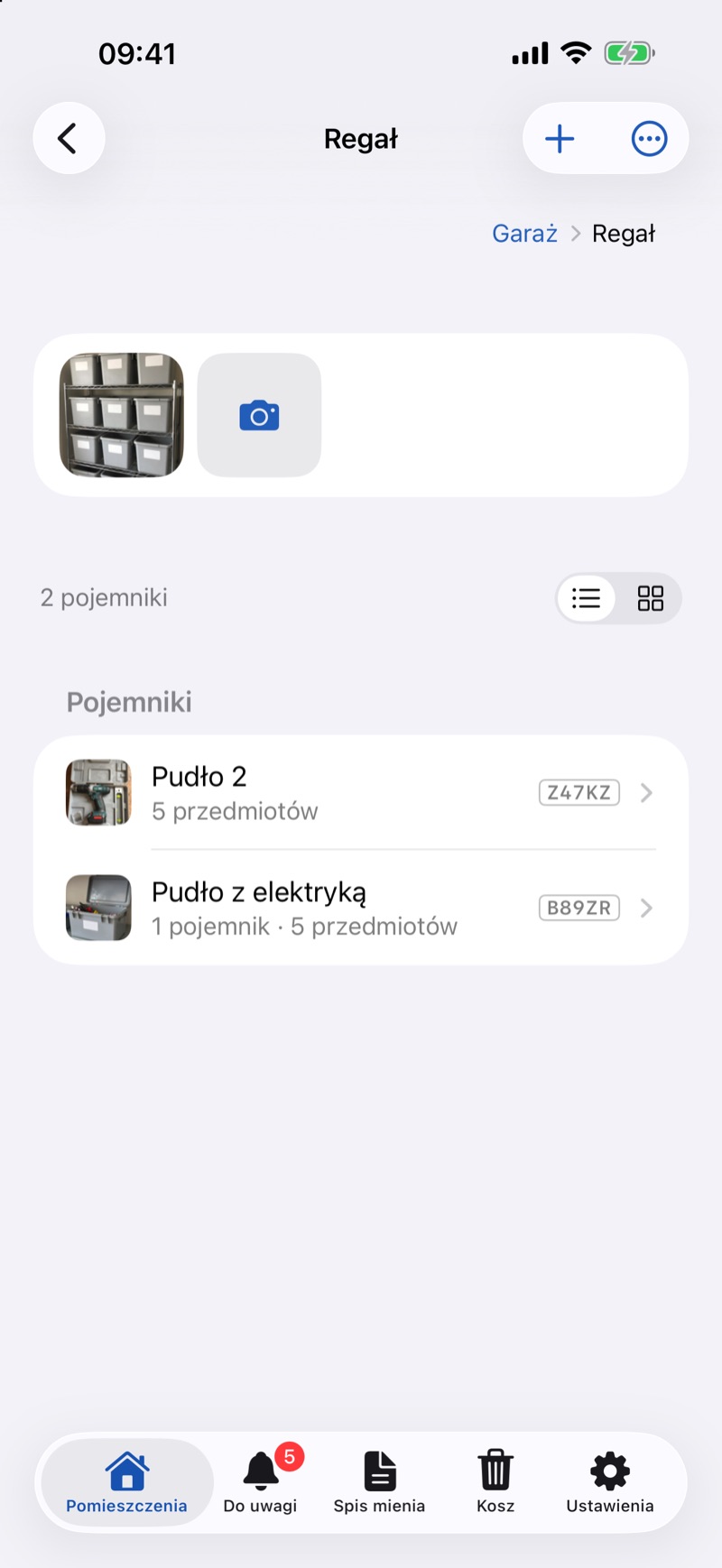
Your catalog has three kinds of places and things: rooms, containers and items. You can put containers inside each other as deep as you need: a shelf, a box, a small bag.
- Add the rooms where you actually keep things: Garage, Basement, Kitchen.
- In a room, add the large containers: a shelf, a wardrobe, a dresser.
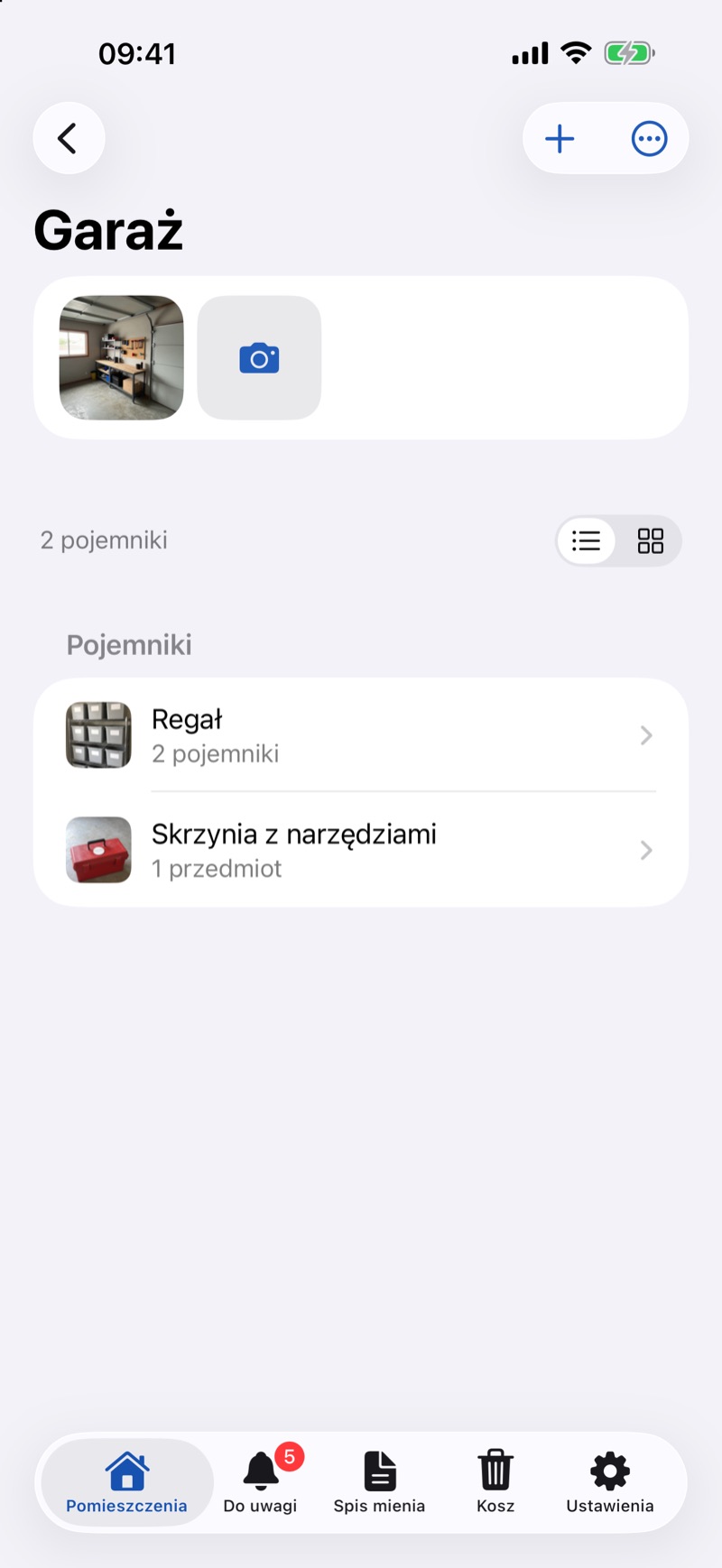
- Inside them, add smaller ones: a box, a drawer, a small bag. Every container can have photos and its own QR label.
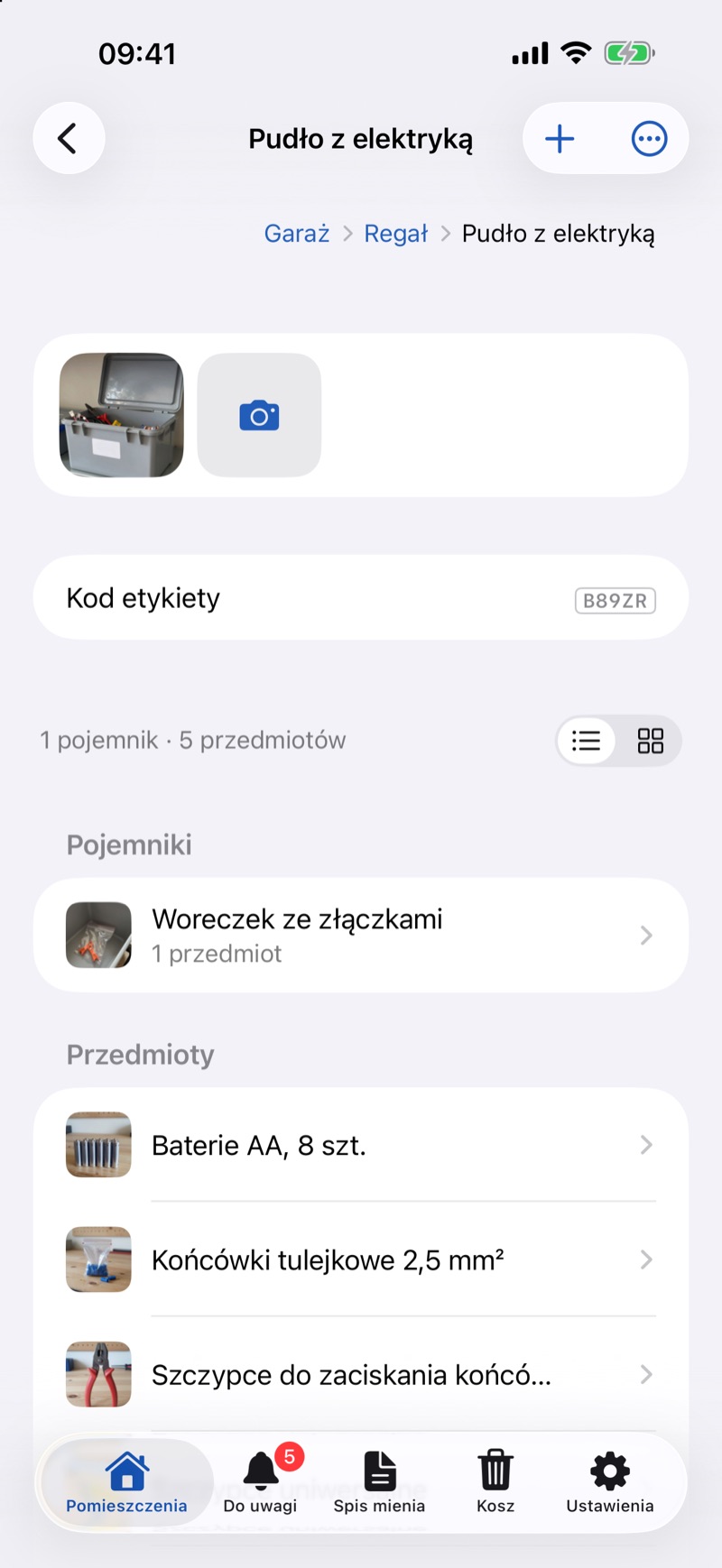
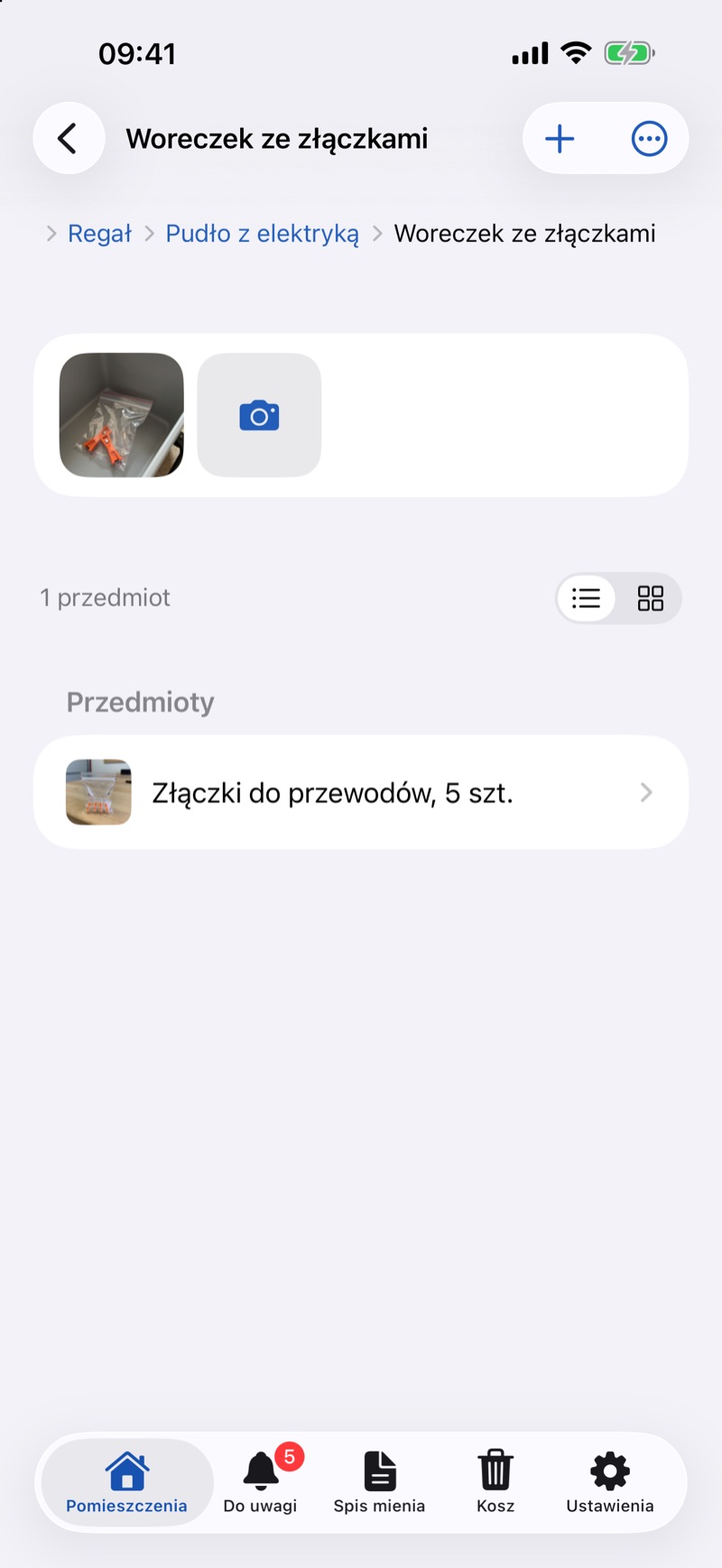
- Add items where they actually are. When something changes place, move it, and a container takes everything inside along with it (Moving Things).
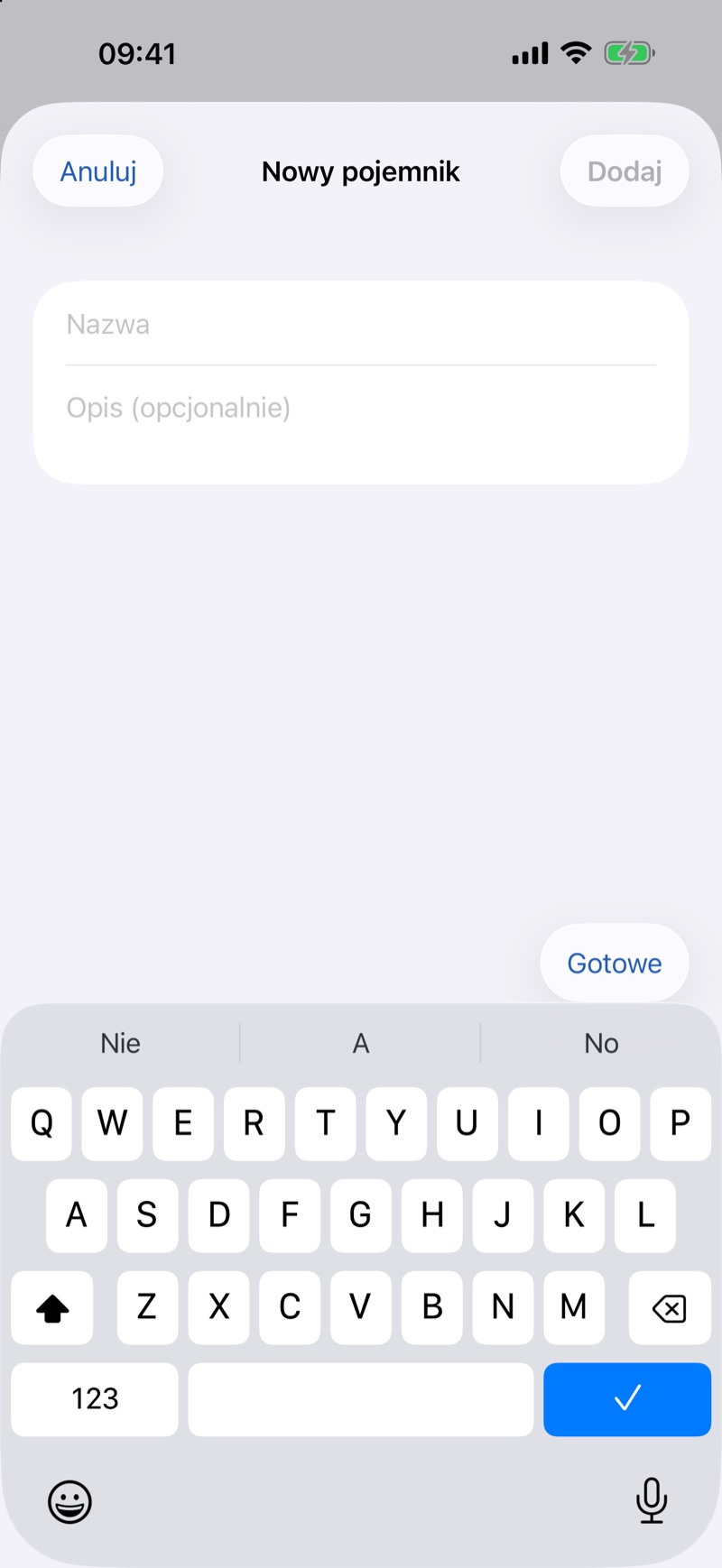
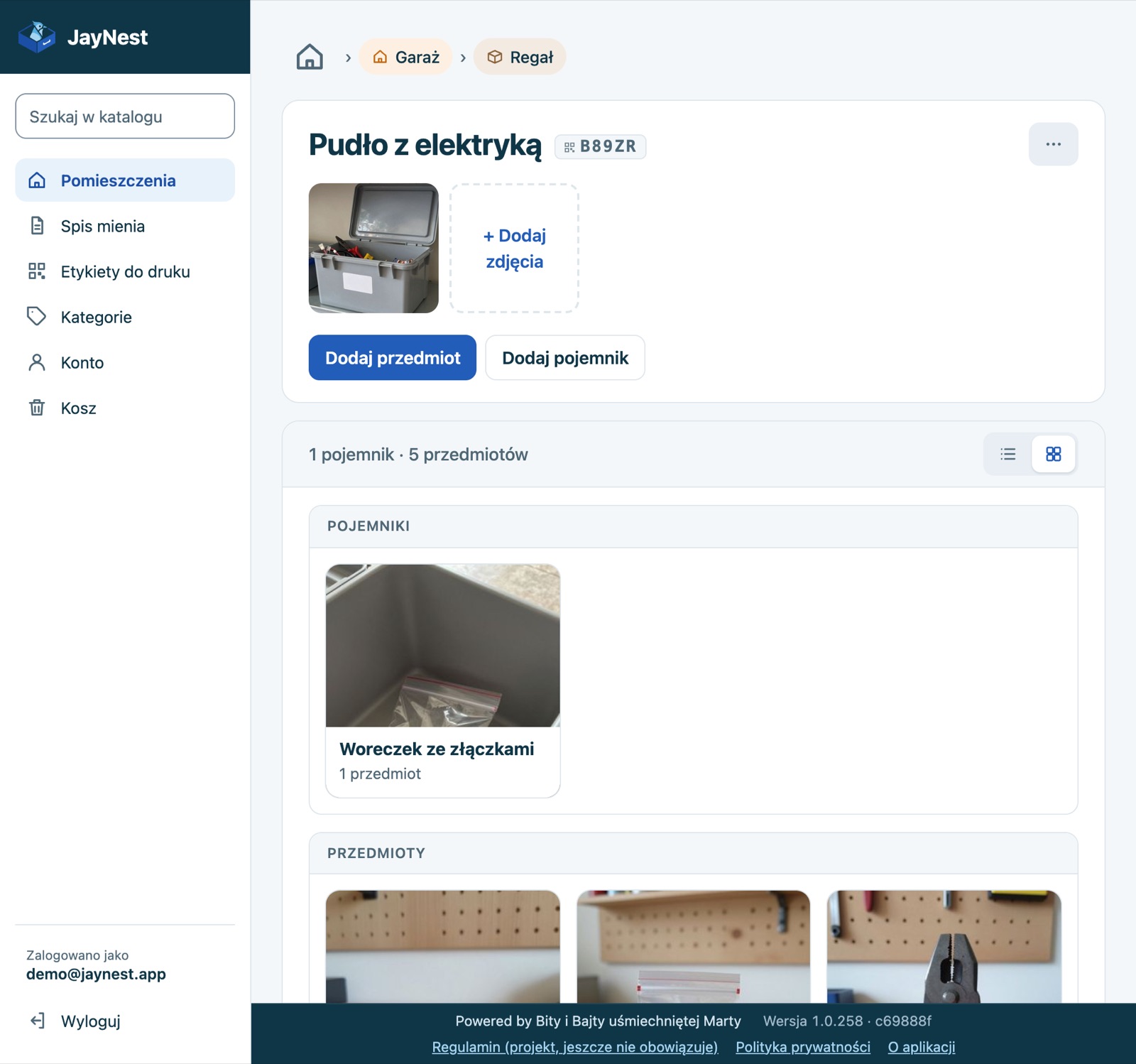
On iPhone, you add a container or an item with the plus button (Add) on the container's screen: New Container or New Item. In the browser, use the Add Container and Add Item buttons below the container's name.
Good to Know
- Put the QR label on what you take off the shelf: usually the box, not the shelf.
- The path, such as Garage › Shelf › Box 2, is at the top of the container's screen and next to every search result.
- On a container's screen, containers come first, then items. The view button switches between a list and tiles with photos.
- A container moved to the trash takes everything inside with it. Things in the trash don't show up in the catalog or in search (Trash).