 JayNest
Your First Box, from Scratch to Label in 5 Minutes
- iPhone and iPad
One box, a few photos and a label from the printer: a few minutes later, you scan the sticker and see what's inside without opening the box.
On iPhone
- Add a room and a box, such as Garage › Box 2 (What JayNest Is and How to Get Started).
- In the box, tap the plus button (Add) and choose New Item.
- Before entering a name, tap Add under Photos, then Take Photo, and photograph the packaging or a plate with text on it. After each photo, you can crop it: Next Photo opens the camera for another one, and Finish ends the series.
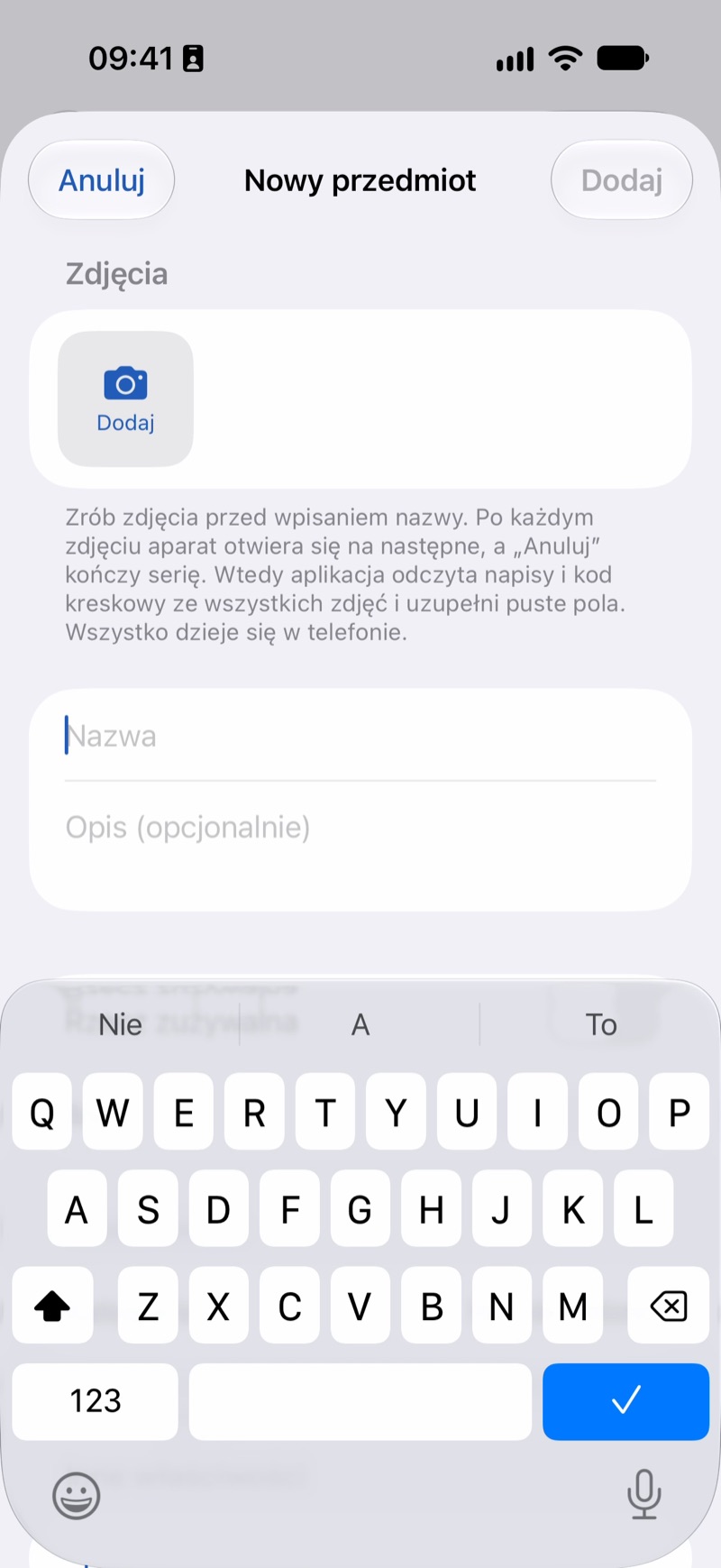
- After the series, the phone reads the text and barcode from all the photos and fills in the empty fields, such as the name, category, brand and model. If the fields stay empty, tap Fill In from Photos.
- Check the fields, correct what's needed and tap Add. Repeat for a few more things.
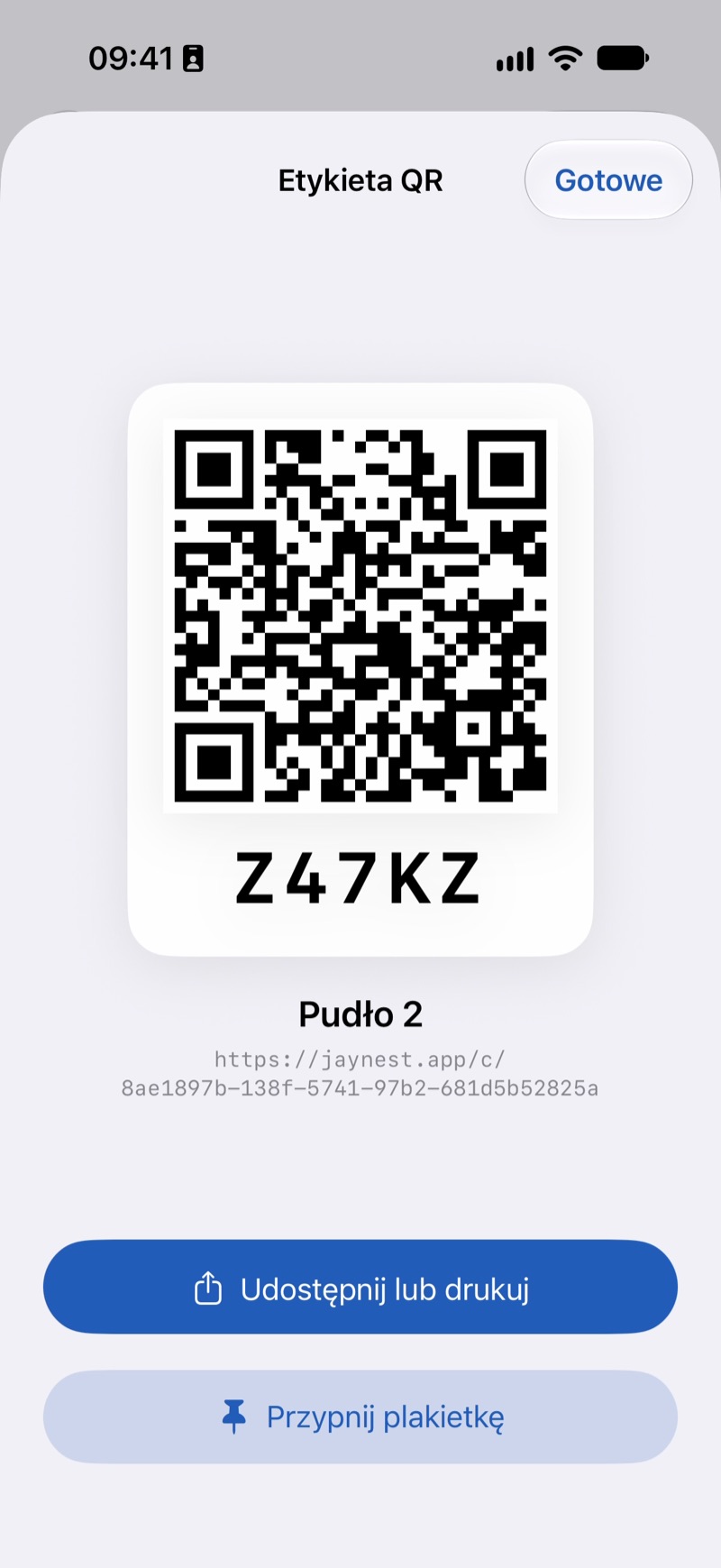
- Go back to the box, tap More (three dots) and choose QR Label. Tap Share or Print and choose to print.
- Stick the label on and scan it with the regular Camera app or in JayNest: Box 2 opens with its full path.
Good to Know
- The phone reads text from packaging and plates, so you sometimes need to correct the name. A close-up photo where the text is clearly visible works best.
- Below the QR code on the label is a short code, such as K7QXB, assigned the first time you print (The Short Code Below the QR Code).
- You can print labels for many boxes at once on a single sheet (Labels for a Whole Wardrobe on One Sheet).
- What recognizes photos, and where: How Recognition Works.