 JayNest
Moving Things and Place Suggestions
- iPhone and iPad
- Browser
To move a box or an item, you pick its new place from a list. A box takes everything inside with it, and its QR label keeps working.
On iPhone
- In a list, swipe the row of a box or an item to the left and tap Move. You'll find the same option when you touch and hold the row, and on the box's or item's screen under … in the top right corner.
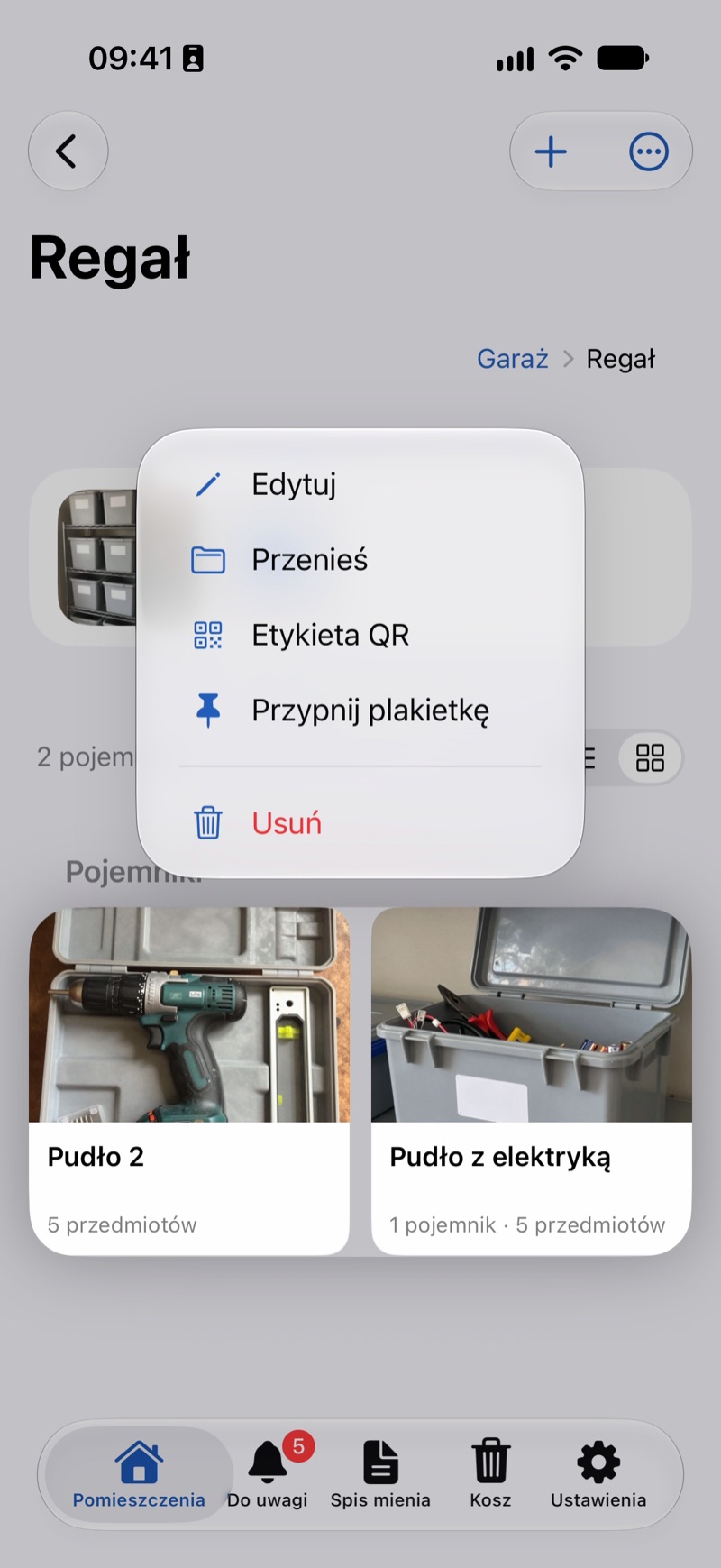
- A list of places opens. Each one shows its path under the name, and the Search Places field narrows the list. The current place is marked Current.
- For an item, the top of the list has a Fits in section: up to three containers that already hold similar things, with a short reason, such as "Already there: …". The other places are below, under All Places.
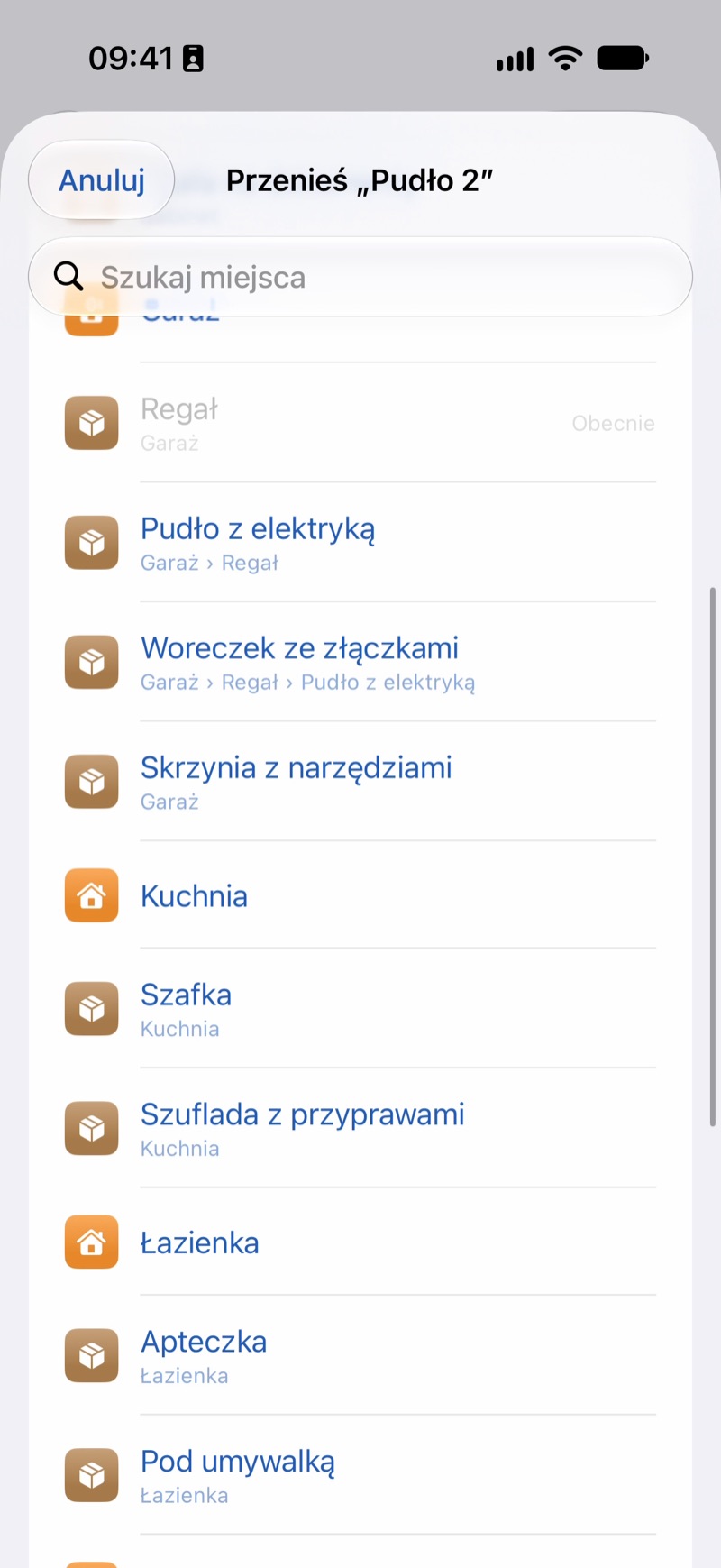
- Tap a place. The thing moves right away, and a box moves with everything inside.
You can also turn a box into a separate room: choose Top Level at the top of the list.
In the Browser
- On the box's or item's page, click … next to its name and choose Move.
- Type a few letters into Search containers, or just click a container in the list. The thing moves right away. To turn a box into a separate room, choose As a separate room.
- Dragging is faster: on a container's page, grab the row of a box or an item and drop it onto another container in the list or onto a step of the path at the top of the page.
Good to Know
- The place suggestion is worked out on the phone from what's already entered: the category, shared tags and words in the names.
- When an item clearly fits somewhere else, its screen shows a box saying Similar things are kept elsewhere, with Move There and No. No hides that suggestion on this phone. Nothing moves on its own.
- Place suggestions are in the phone app. The browser doesn't have them.
- A QR label points to the thing, not to its place, so you don't need to print it again after a move (Moved a Box: Does Its Label Still Work?).