 JayNest
What JayNest Is and How to Get Started
- iPhone and iPad
- Browser
JayNest remembers what's in which box, who borrowed the drill and when a warranty runs out. You start with one room and one box, and on your phone you don't need an account or an internet connection for it.
On iPhone
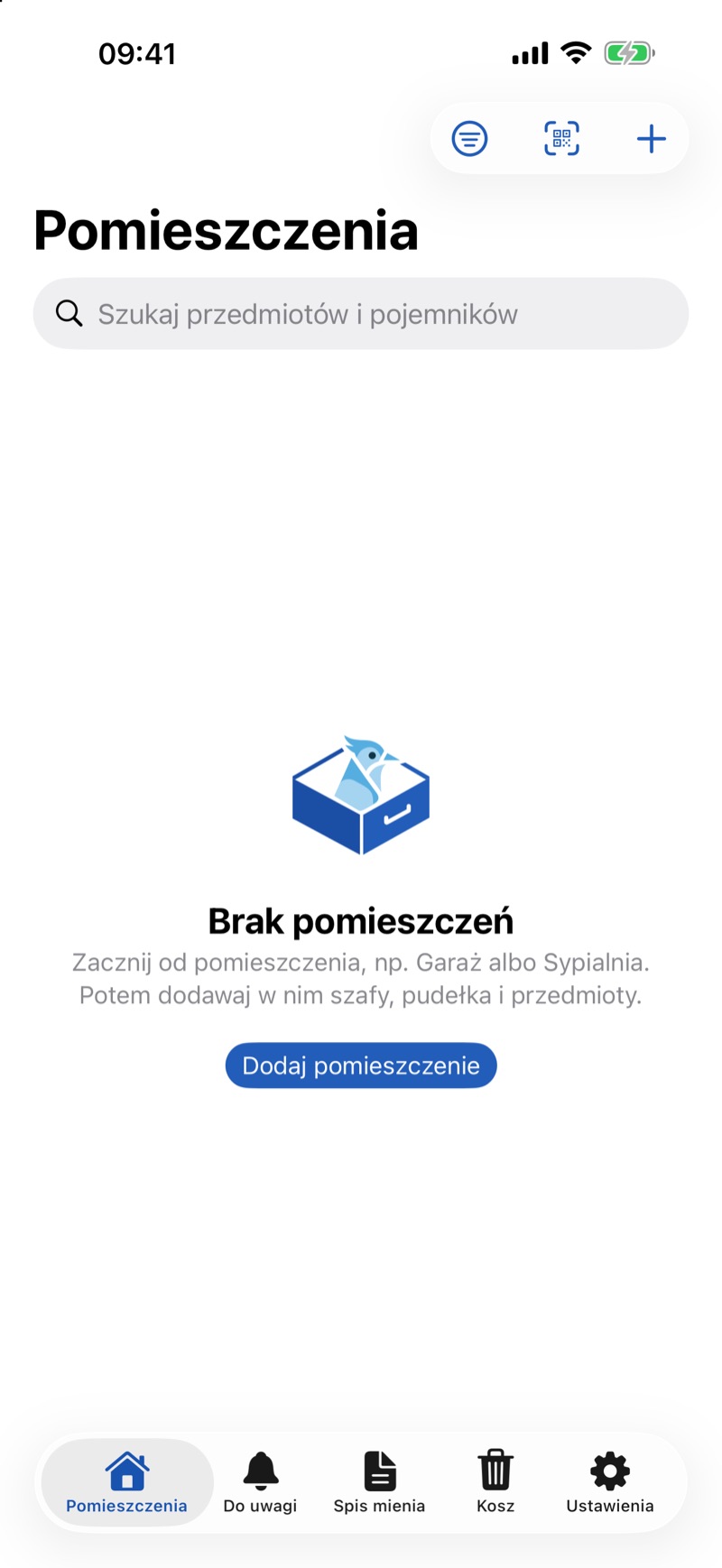
- The first time you open the app, you'll see Welcome to JayNest. Under Where do you want to start?, select one or more rooms, such as Garage, and tap Get Started. To add a room that isn't on the list, tap Other…. If you select just one room, it opens right away.
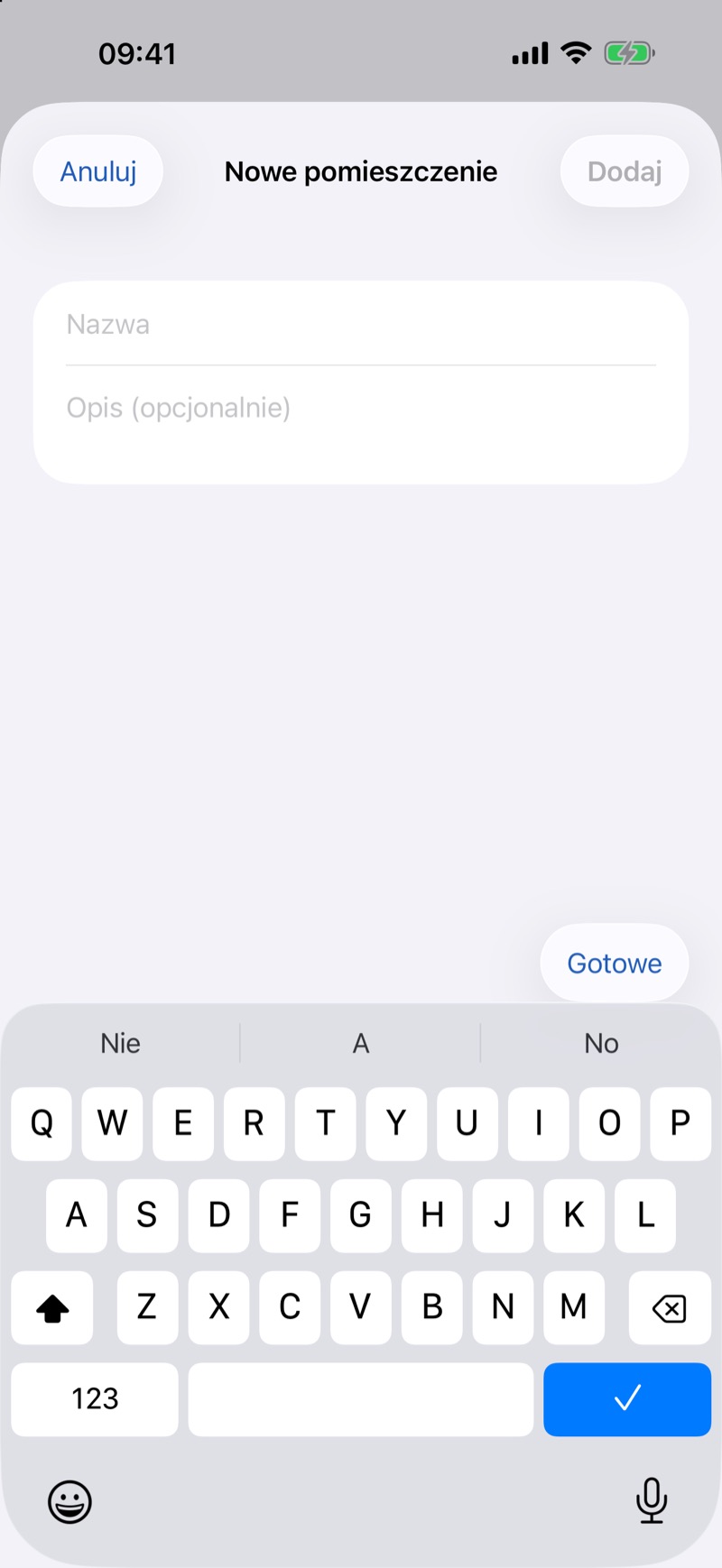
- You add more rooms on the Rooms screen with the plus button (New Room): enter a name and tap Add. When the list is empty, there's also an Add Room button.
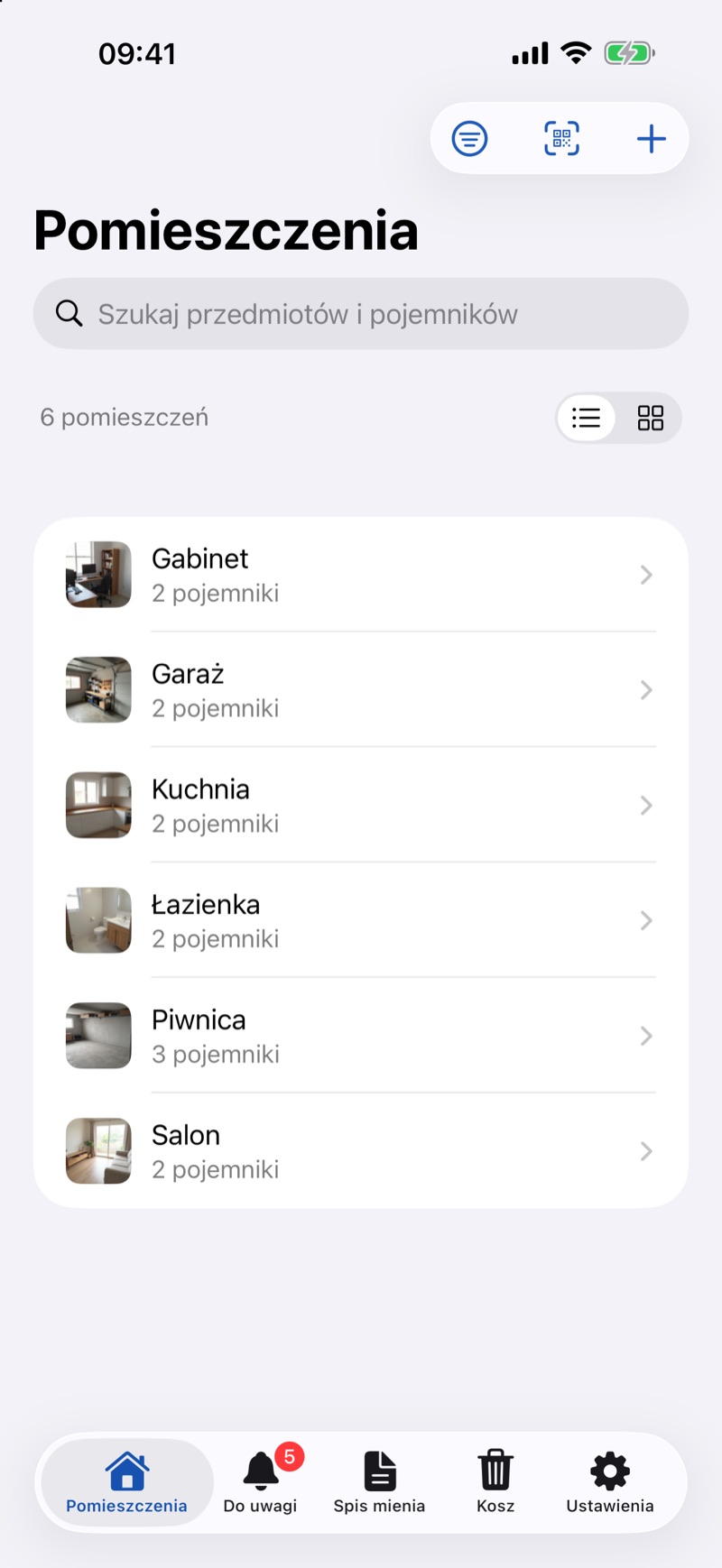
- Open the room, tap the plus button (Add) and choose New Container, such as Shelf. Inside the shelf, add Box 2 the same way.
- In the box, tap the plus button and choose New Item. A name is enough; you can fill in the rest later. Tap Add. An empty container also has Add Item and Add Container buttons.
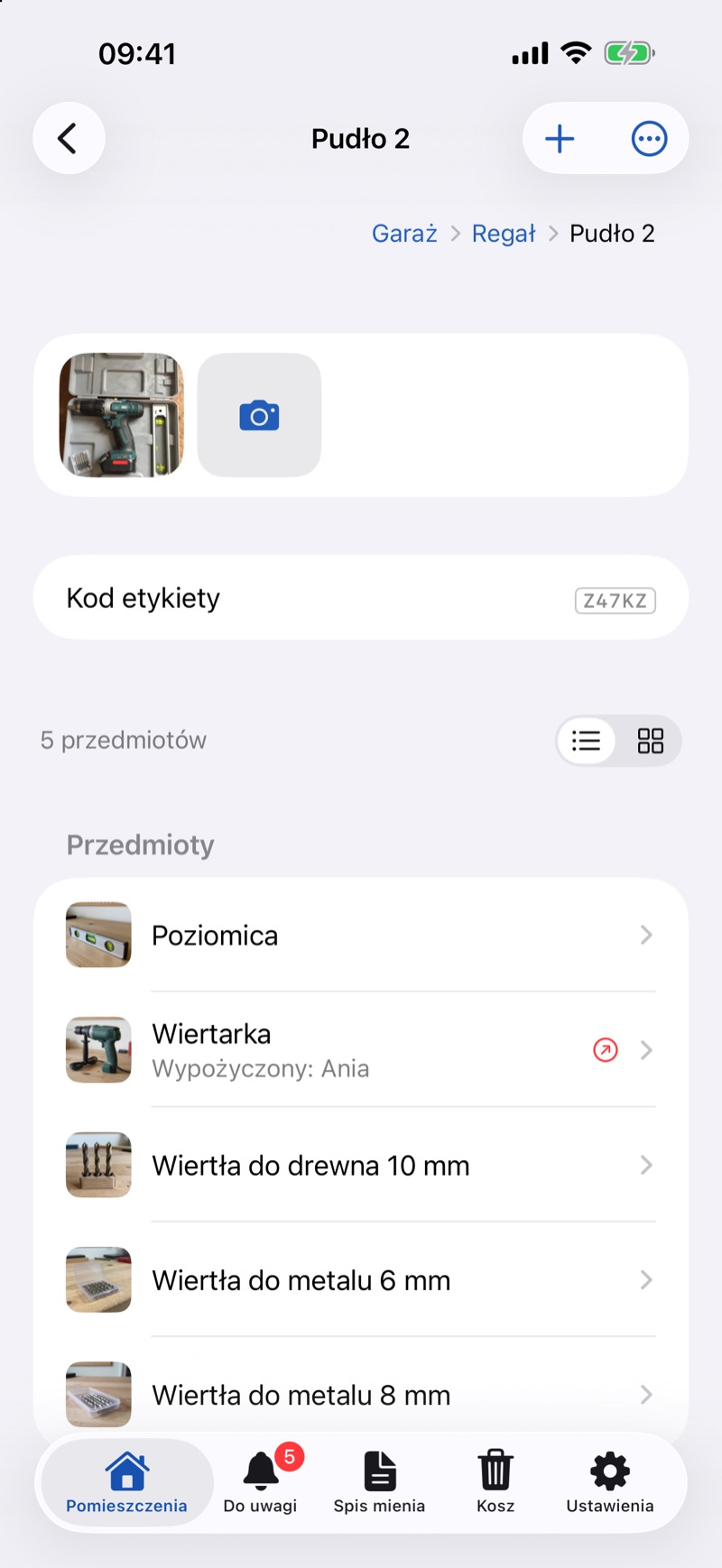
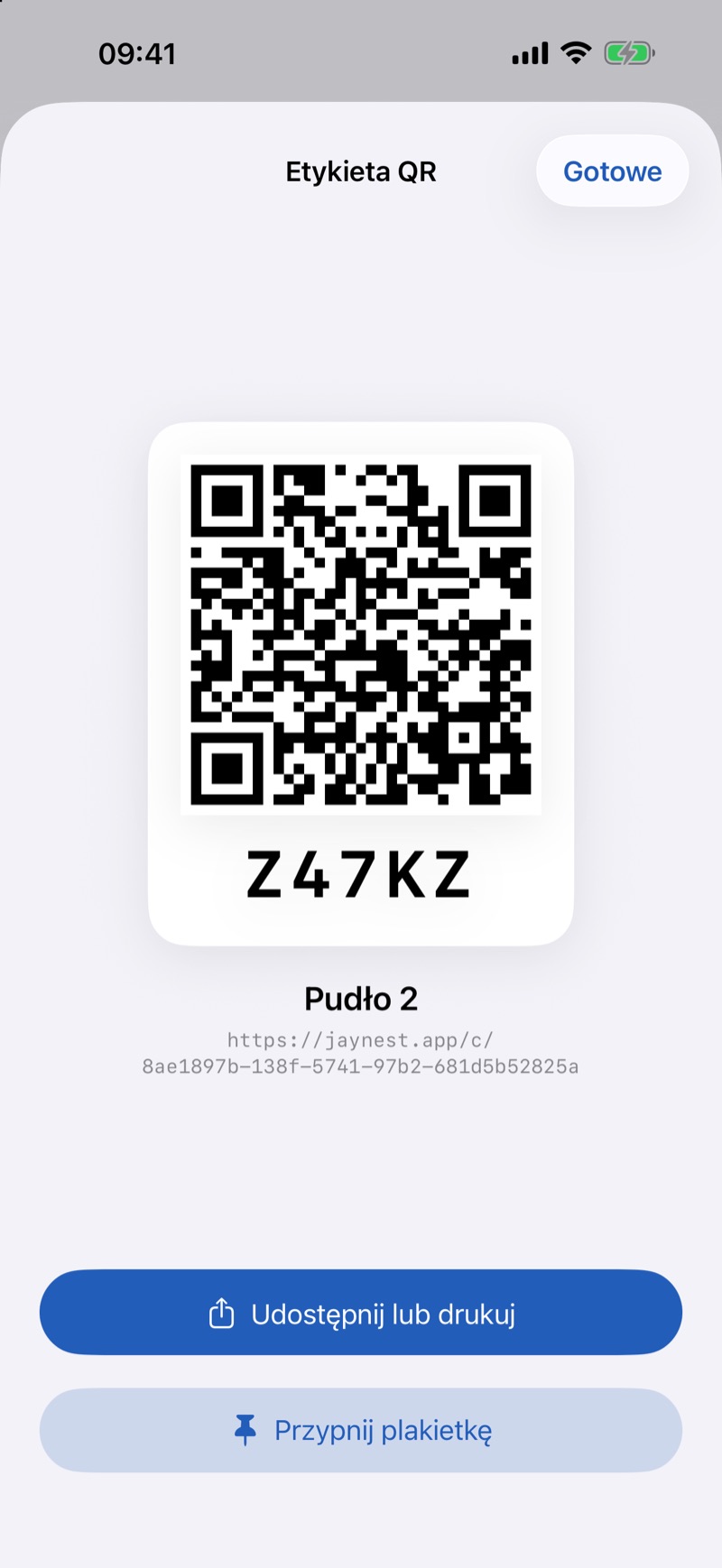
- Print the box's QR label and stick it on (How to Print a Label for One Box).
In the Browser
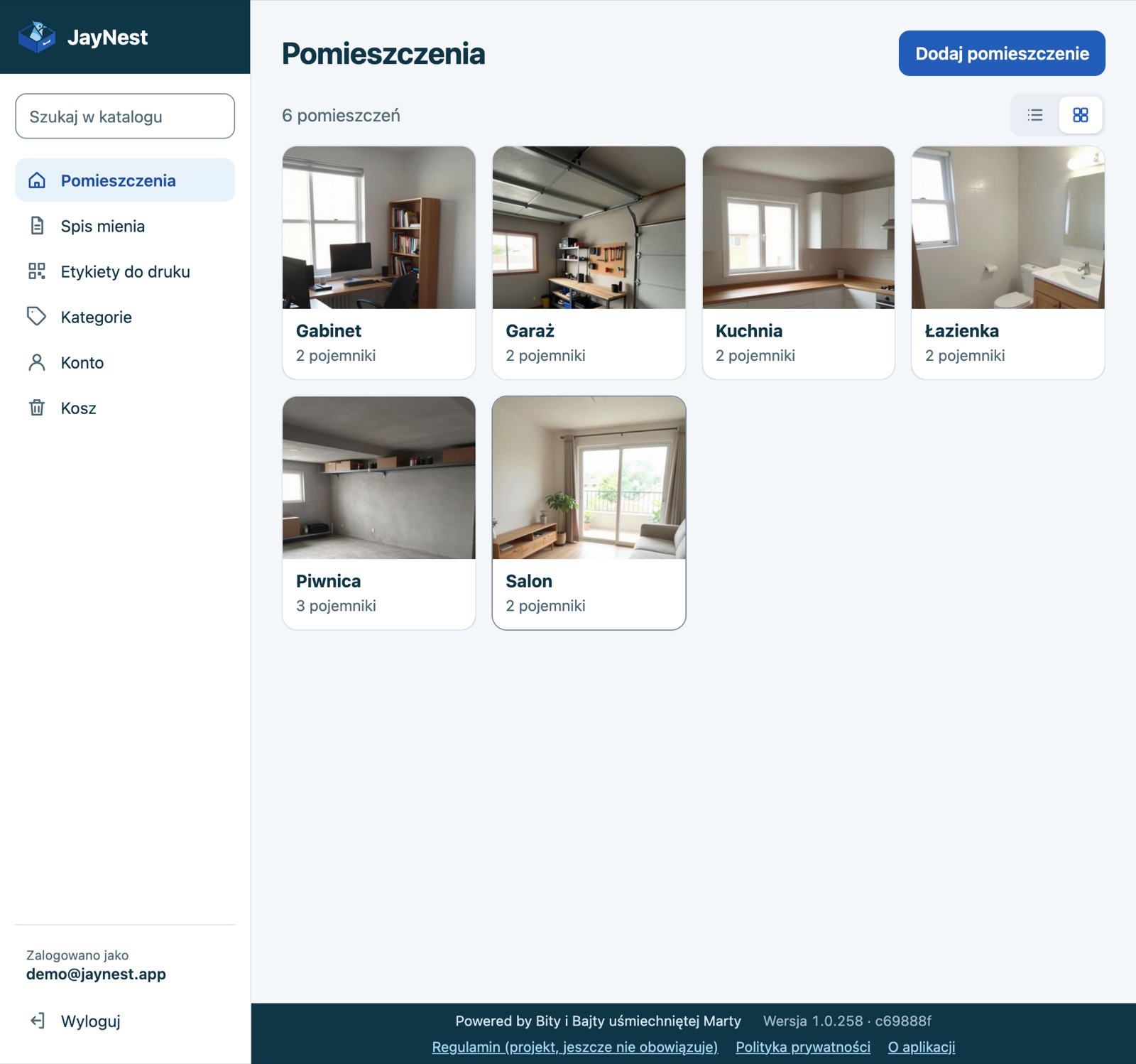
The web app at app.jaynest.app works with a JayNest account (The Web App).
- Sign in. With an empty catalog, you'll see Where do you want to start?: select rooms and click Add selected. Add more with the Add Room button.
- Open a room and click Add Container or Add Item. Enter a name and click Save.
Good to Know
- You don't need an account: without one, everything stays on your phone. With an account, you have the same catalog on all your devices and in the browser (Do I Need an Account?).
- Already have an account? On the welcome screen, tap I already have an account – sign in, and your catalog downloads on its own.
- JayNest is available in Polish, English, Japanese and German, following the language of your phone or browser. For any other language, it's in English.
- How to organize your catalog so you don't get lost: Rooms, Containers and Items.