 JayNest
How Recognition Works: On the Phone, Apple Model, Your Own Model, JayNest AI
- iPhone and iPad
- Browser
Photos of an item can fill in its name, category and properties. You choose how recognition works in the settings, and by default everything happens on your phone. Photos leave your phone only for your own model or for JayNest AI, and only if you choose that.
Which Option Works Where
On the Phone, No AI
- Works on iPhone right away: it reads text and barcodes and names the item using simple rules.
- The photo never leaves your phone. Free.
Apple Model on the Phone
- iPhone only: iPhone 15 Pro, iPhone 16 or later with iOS 26. The model sees photos from iOS 27; on iOS 26 it gets only the text read by the phone.
- Apple Intelligence must be turned on, and it works only when the iPhone and Siri use a language it supports (not Polish).
- The photo never leaves your phone. Free.
Your Own AI Model
- On iPhone: you enter the address of your own server or an API key, for example for LM Studio, Ollama or Gemini (Your own AI model, step by step).
- Photos go to your server. Any cost is on your side.
JayNest AI
- On iPhone and in the browser, with a JayNest account, after you give consent and with recognitions on your account. For now, only for people who have been given access.
- It runs only after you tap a button and confirm. Photos go to the JayNest server, and each recognition uses one from your pool.
Bielik (Receipts and Invoices)
- On iPhone, with JayNest in Polish, on a phone with at least 8 GB of memory and the model downloaded (about 5 GB).
- On a receipt or invoice with several lines, it picks the line for the item (Receipt photo). The photo never leaves your phone. Free.
On iPhone
- In the Settings tab, tap Recognition (in the Photos & AI group).
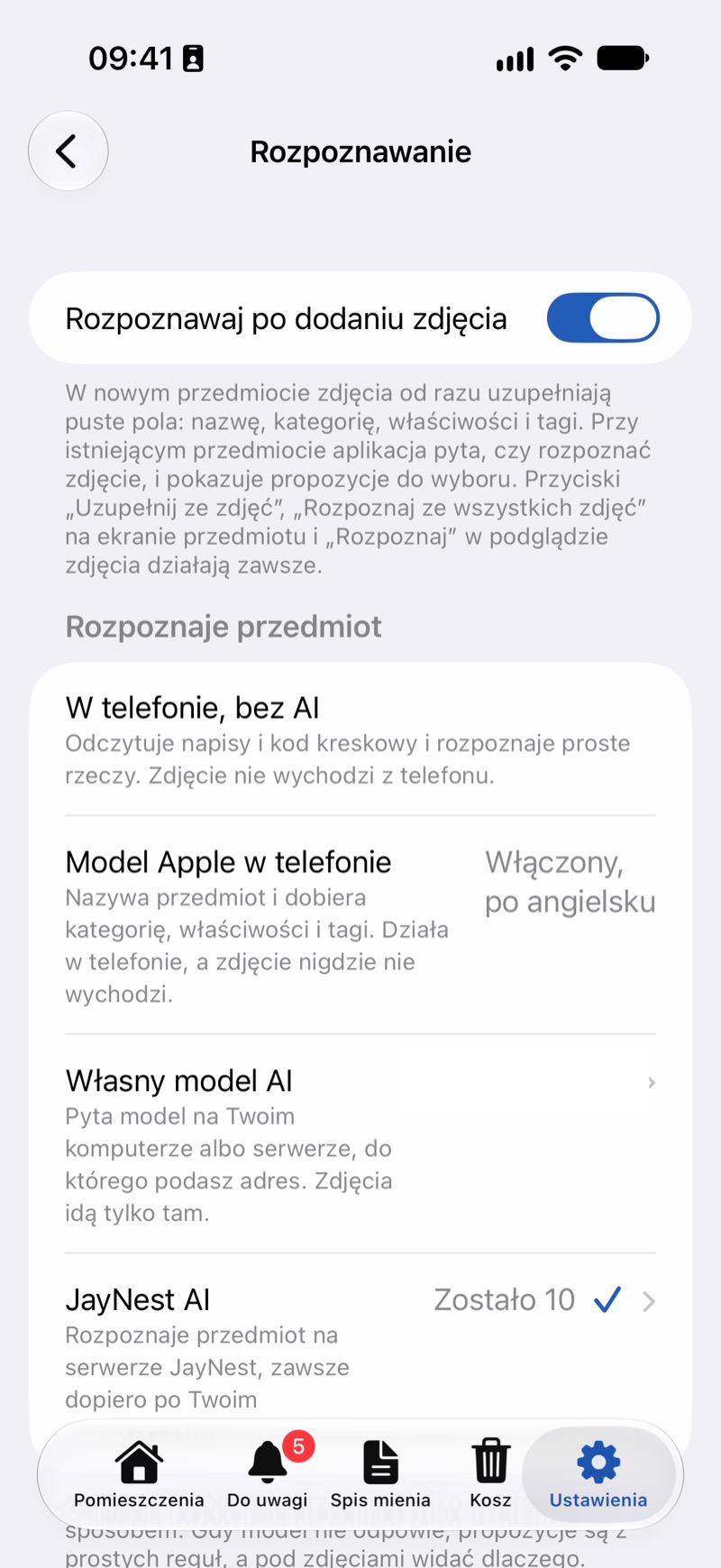
- Under Recognizes the Item, tap the method you want: On the Phone, No AI, Apple Model on the Phone, Your Own AI Model or JayNest AI. The chosen one has a checkmark.
- The Apple model shows its status, such as On. If the Apple model isn't working, its row opens a screen with what's missing and how to turn it on.
- Your Own AI Model opens a screen for the server address. JayNest AI requires signing in and opens the AI Recognition screen with consent and the number of recognitions.
Under the Fill In from Photos and Recognize from All Photos buttons, a badge shows what will recognize the photos, such as On the Phone or Own Model. If the chosen method isn't working right now, the note under the badge says that simple rules on the phone will be used.
For a saved item, tap Recognize from All Photos. In the From Photo list, select the suggestions you want to add and tap Add. A sentence under the suggestions says where they come from.
In the Browser
In the browser, photos are recognized only by JayNest AI, if you have access to it. You'll find consent and the number of recognitions on the Account page, under AI Recognition.
Good to Know
- The app recognizes items only the way you chose. If the model doesn't answer, the suggestions come from simple rules on the phone, and the note under the photos says why. Simple rules also fill in the fields the model left out.
- JayNest AI never runs on its own. When it's chosen, simple rules fill in the fields after you add photos, and JayNest AI runs only after you tap a button and confirm in the dialog.
- For a new item, photos fill in the empty fields right away; for a saved item, the app asks whether to recognize a new photo. Recognize After Adding a Photo turns both off; the recognize buttons still work.
- Bielik has its own switch in a separate section for receipts and invoices, which appears only when the app is in Polish.