 JayNest
New Item from Photos: A Photo Series and Filled-In Fields
- iPhone and iPad
- Browser
For a new item, you start with photos of the packaging or the rating plate. After the photo series, the app fills in the empty fields: name, category, brand, model and numbers with units, such as 18 V. You can correct everything before saving.
On iPhone
- Open a room or container, tap + and choose New Item.
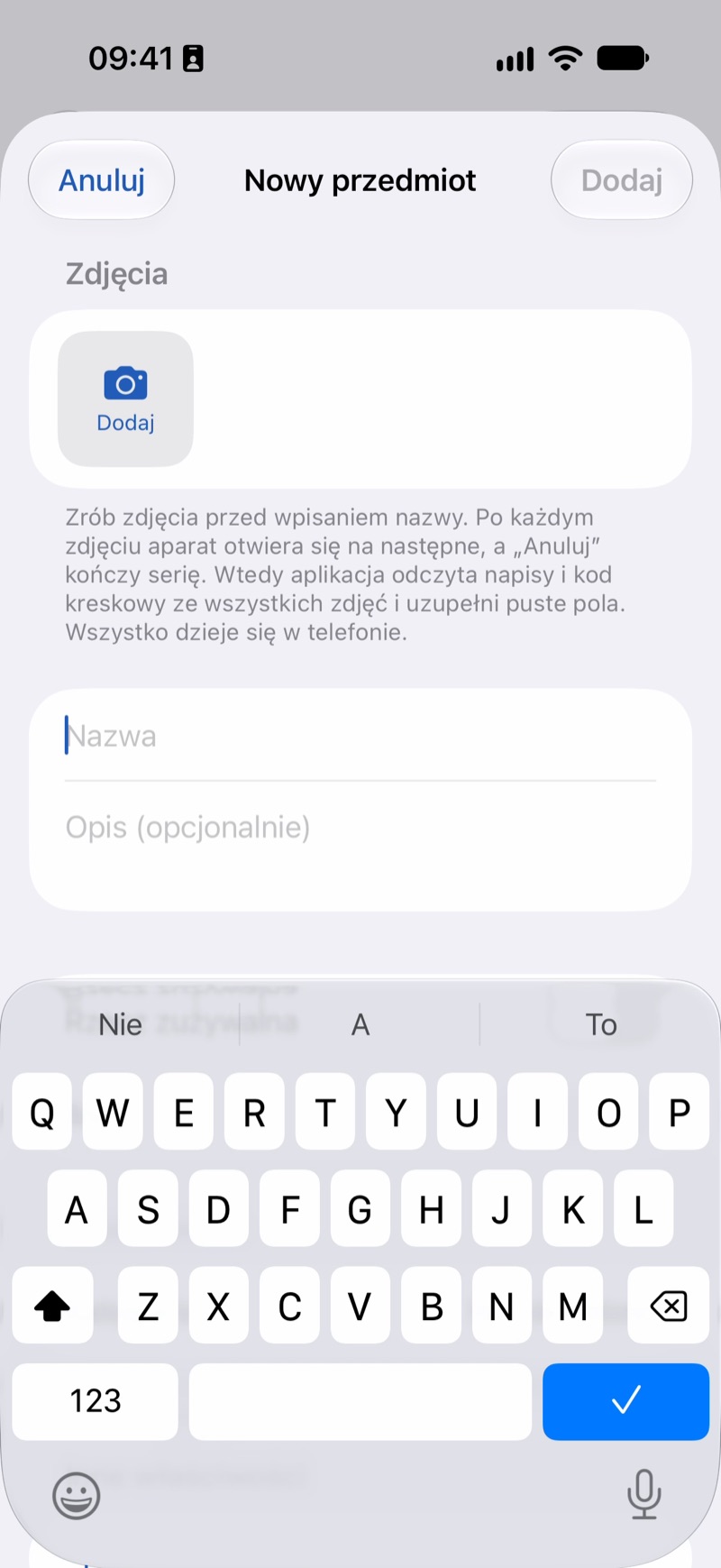
- In the Photos section, tap Add and choose Take Photo. After each photo, the camera opens again for the next one: take the front and back of the packaging, then tap Cancel to end the series. You can also pick photos from your library (Choose from Library).
- After the series, the app reads the text and barcode from all the photos and fills in the empty fields. A sentence under the photos says where the suggestions come from.
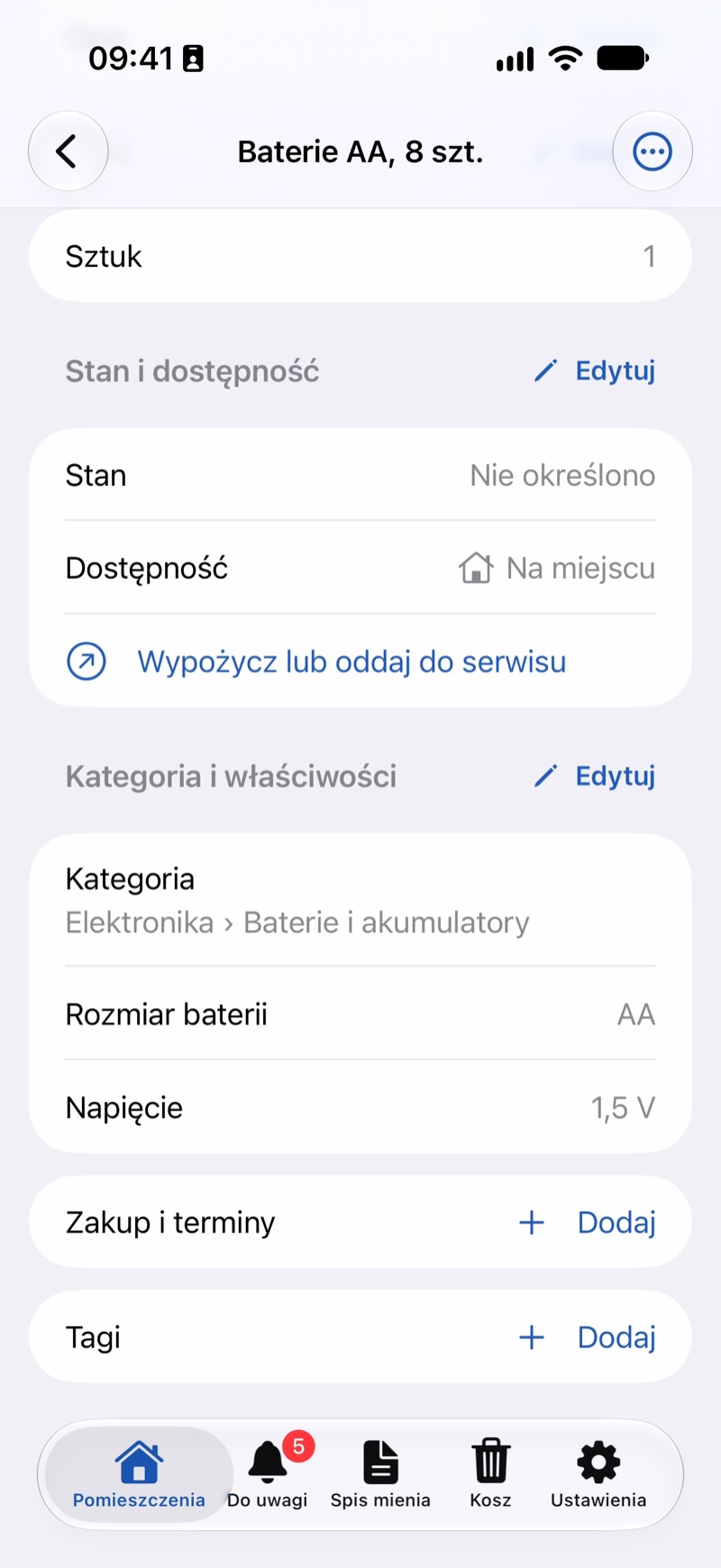
- Check the name and fields, correct anything you need to, and tap Add.
If you take another photo, tap Fill In from Photos: the app recognizes all the photos again and changes only the fields it filled in itself, never what you typed. The badge under the button shows what will recognize the photos, such as On the Phone.
In the Browser
- On the container page, click Add Item.
- Click Add Photos and choose photos from your computer.
- Enter the name and fields and click Save. The photos are saved together with the item.
In the browser, photos are recognized only by JayNest AI, and only if you have access to it: then there is a Recognize with JayNest AI button under the photos, showing how many recognitions you have left.
Good to Know
- On iPhone, the phone itself reads the text, and the photo never leaves it. Other ways of recognizing items are described in How recognition works.
- Without any text, such as a figurine without its box, the phone can tell at most what kind of thing it is. It's worth correcting the name then.
- To stop recognizing right after you add photos, turn off Recognize After Adding a Photo in Settings → Recognition. The Fill In from Photos button still works.
- For an item you've already saved, tap Recognize from All Photos: the suggestions appear in a list for you to select.
- A photo of the receipt fills in the purchase date, price and store (Receipt photo).