 JayNest
How to Print Labels for a Whole Wardrobe on One A4 Sheet
- iPhone and iPad
- Browser
You don't have to print each box separately. Print Labels… on a container or room makes an A4 sheet with labels for everything inside, with cutting lines, in three sizes.
On iPhone
- Open the wardrobe, the shelf or a whole room.
- Tap More (three dots) and choose Print Labels….
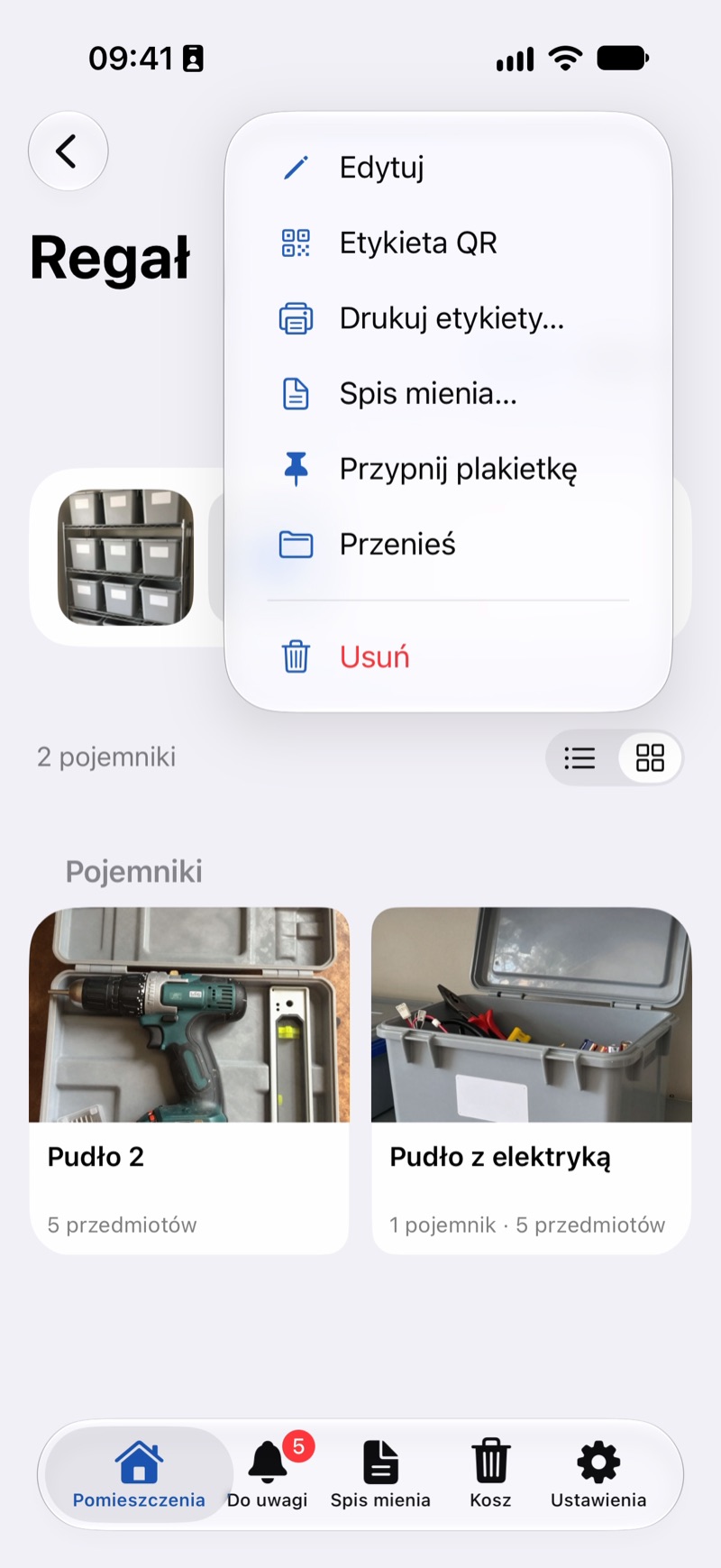
- On the Labels to Print screen, select what should get a label. Containers are already selected, and you can add items. Select All selects the whole group.
- Choose a size: Large (6 per page), Medium (12) or Small (24).
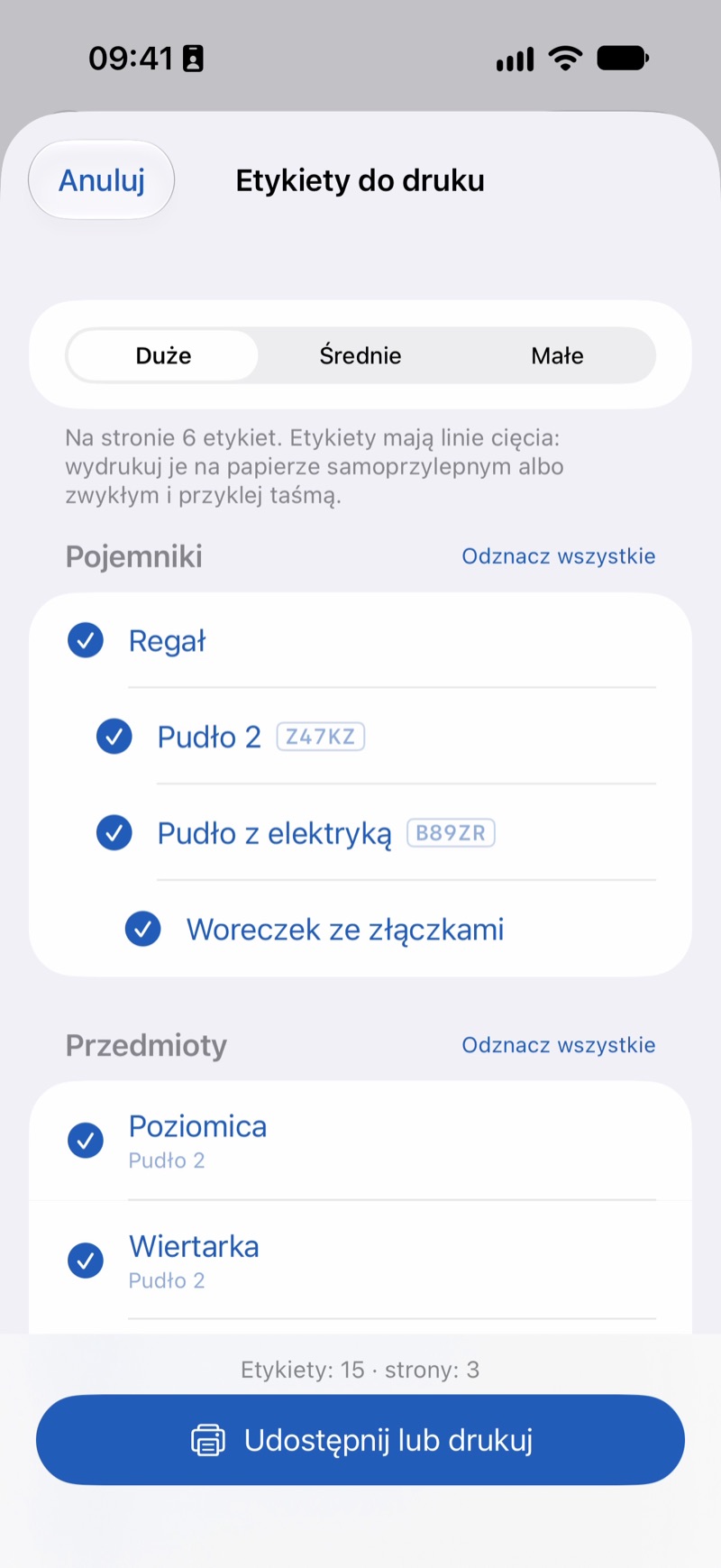
- Below is a Preview of the sheet. Tap Share or Print and choose to print, or save the PDF file.
- Cut the sheet along the lines and stick the labels on.
In the Browser
- On a container's or room's page, click the three-dot button (More actions) next to the name and choose Print labels. Labels to Print in the menu on the left gives you labels for the whole catalog.
- Select the things and choose a size: Large, Medium or Small.
- Click Print. Things that don't have a short code yet get one now. In the browser's print dialog, you can also save the sheet as a PDF.
Good to Know
- Labels at 24 per page are small, just right for small bags and odds and ends. For boxes, 6 or 12 is better.
- You can print the sheet on adhesive paper, or on plain paper and attach the labels with tape.
- A label has the name, the QR code and the short code, but no path: after you move a box, a printed path would no longer be right.
- In countries that use Letter paper (such as the US and Canada), the sheet is Letter size.
- A single label: How to Print a Label for One Box.