 JayNest
How to Print a Label for One Box
- iPhone and iPad
- Browser
Every box and every item has its own QR label. You print it from the container's or item's screen.
On iPhone
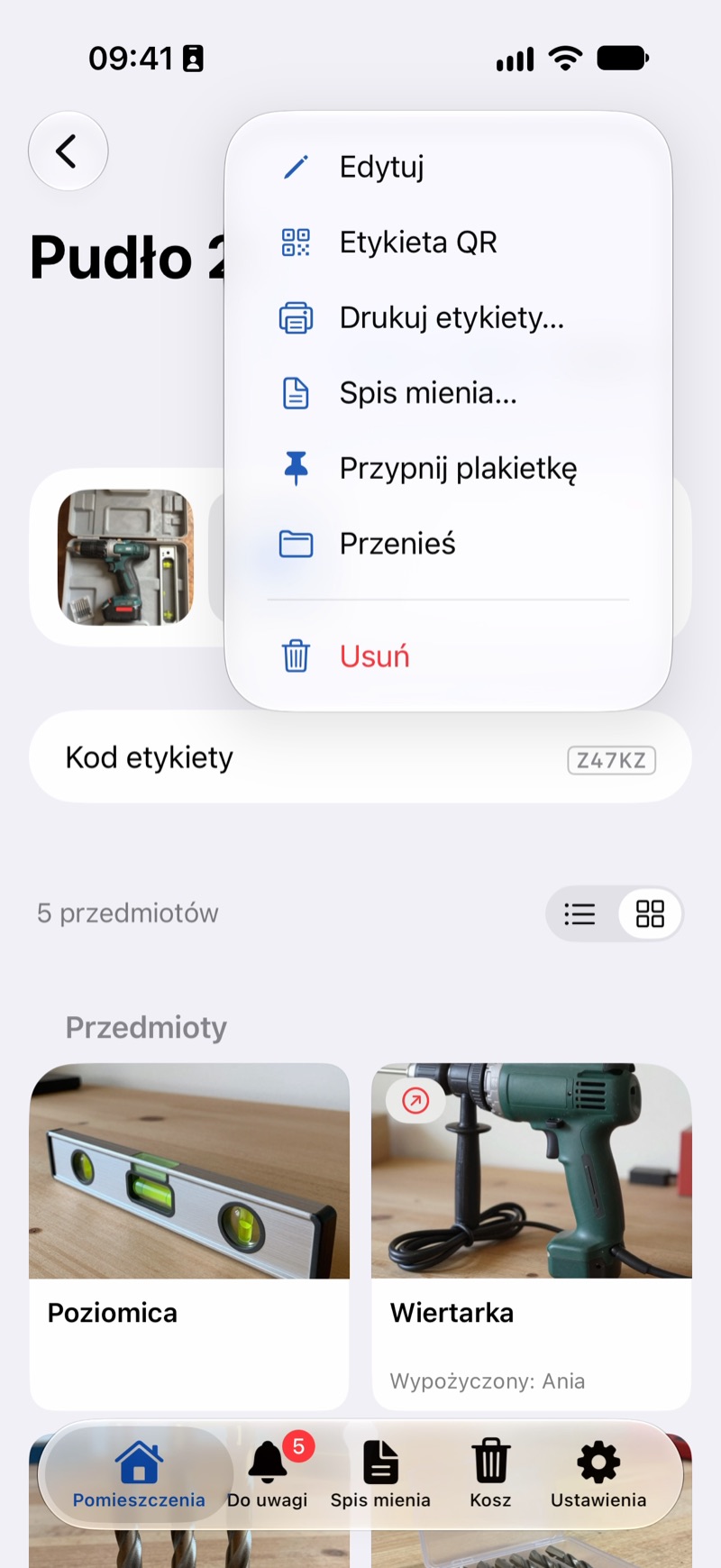
- Open the box, tap More (three dots) and choose QR Label. For an item, tap the QR Label tile next to the photos. You can also open the label from a list: touch and hold the row and choose QR Label.
- You'll see a preview: the name, the QR code and the short code below it.
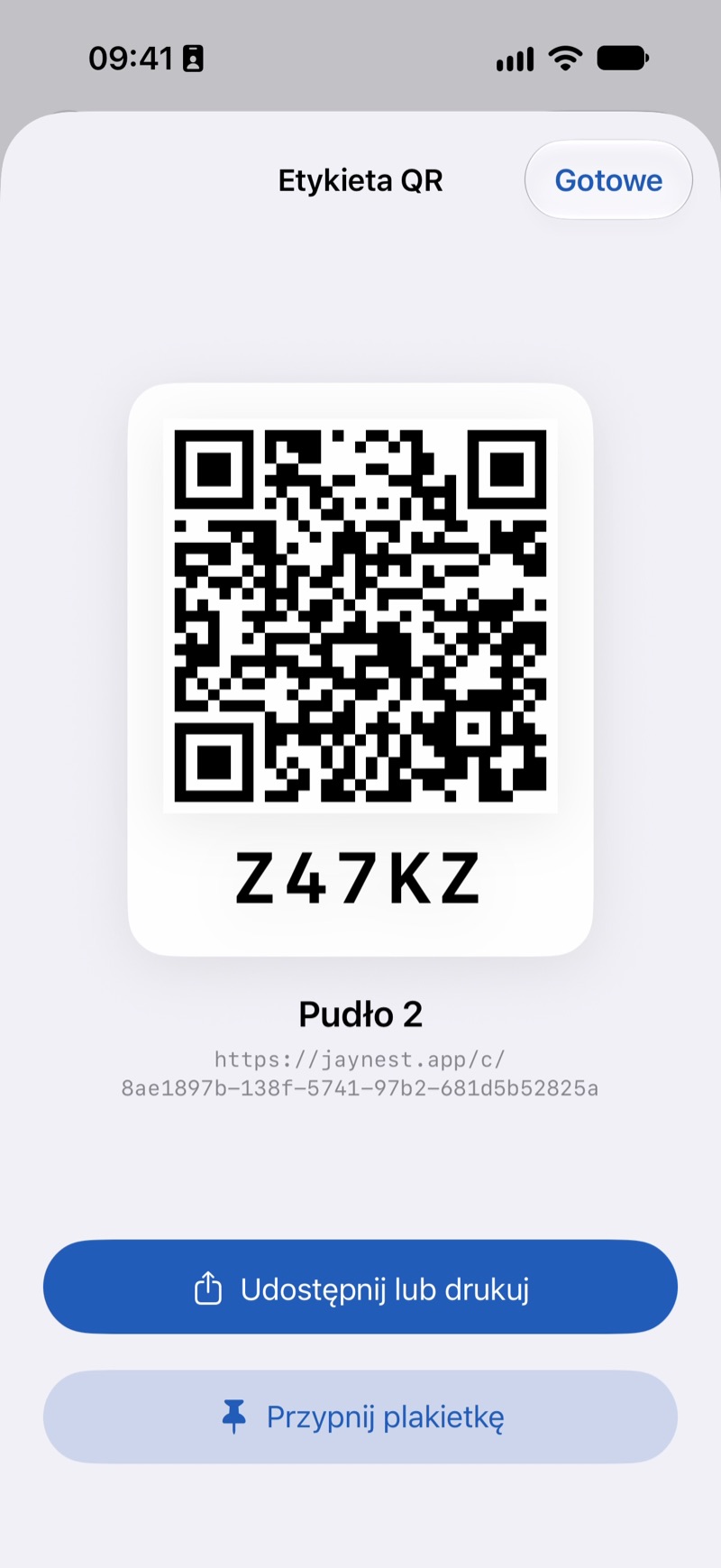
- Tap Share or Print. In the share sheet, choose to print, or save the label image or send it.
- Tap Done.
In the Browser
- Item: on the item's page, click QR label next to the photos. The Labels to Print page opens with just that label. Click Print.
- Box: click the three-dot button (More actions) next to the box's name and choose Print labels. The box and the containers inside it are selected; if you only want the box's label, deselect the others. Choose a size and click Print.
The browser opens its print dialog, where you can also save the label as a PDF.
Good to Know
- The label is a link,
https://jaynest.app/c/…, to that one box (for an item,https://jaynest.app/i/…), so it keeps working after you move the box (I Moved a Box). - A thing gets the short code below the QR code the first time its label is printed or shared. The code is random; you can't choose it or type your own (The Short Code Below the QR Code).
- You can print labels for many things at once, such as a whole wardrobe, on a single A4 sheet (Labels for a Whole Wardrobe on One Sheet).