 JayNest
Item Details: Condition, Warranty, Price, Tags and Description
- iPhone and iPad
- Browser
With each item, you can save its condition, purchase date, price in any currency, store, warranty end, expiry date, tags and description. Everything is optional, so you can start with just a name and fill in the rest later.
On iPhone
The item's screen has fixed groups, always in the same order: Description, Quantity, Condition and Availability, Category and Properties, Purchase and Dates and Tags. An empty group shows Add next to its name.
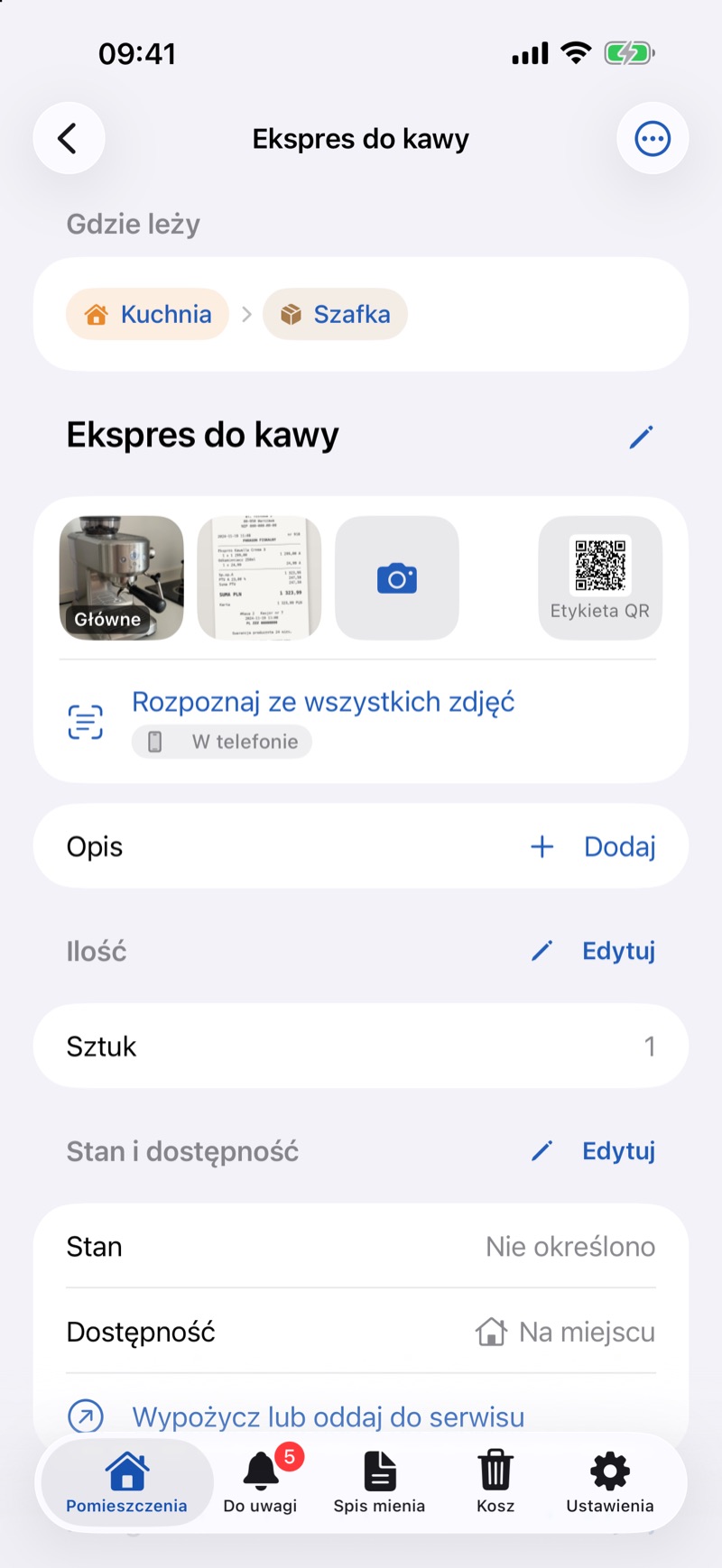
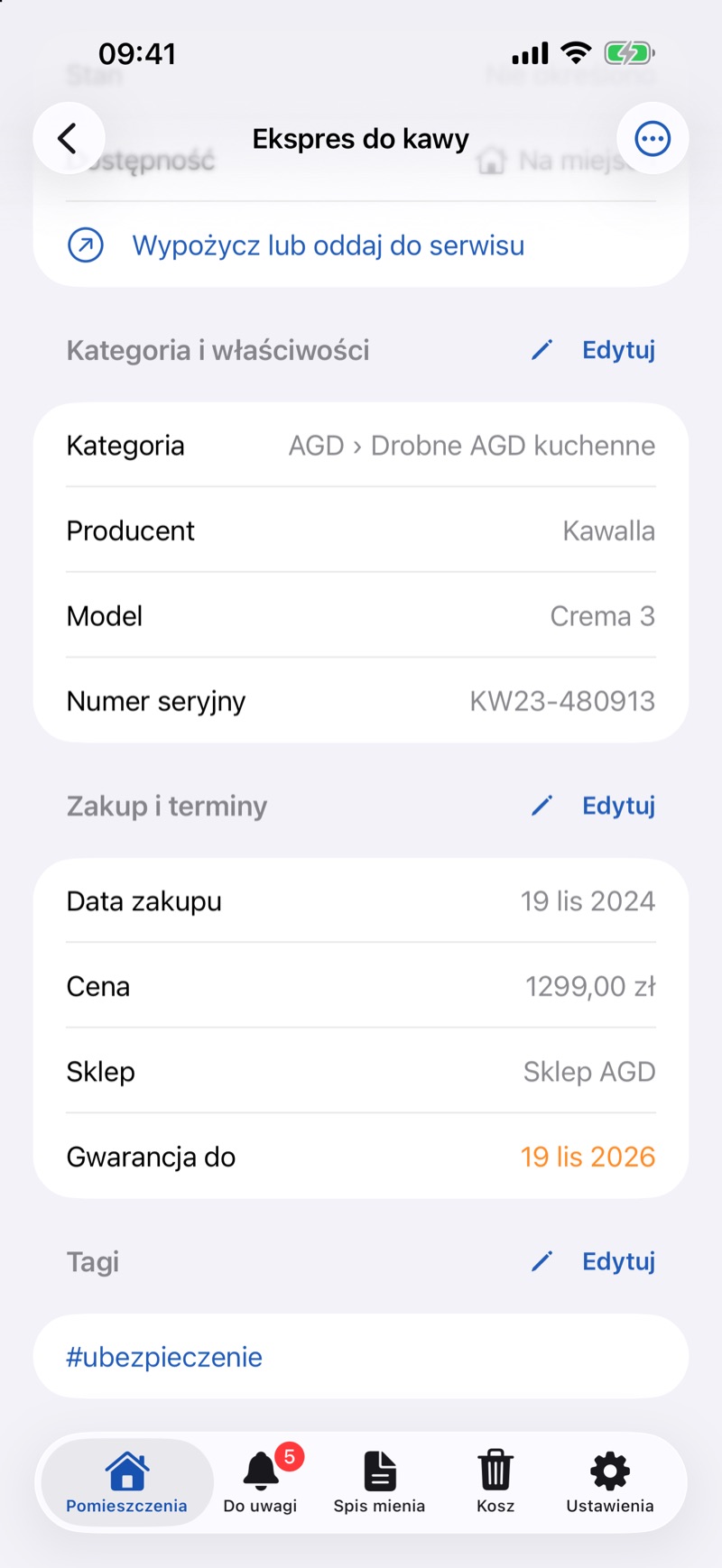
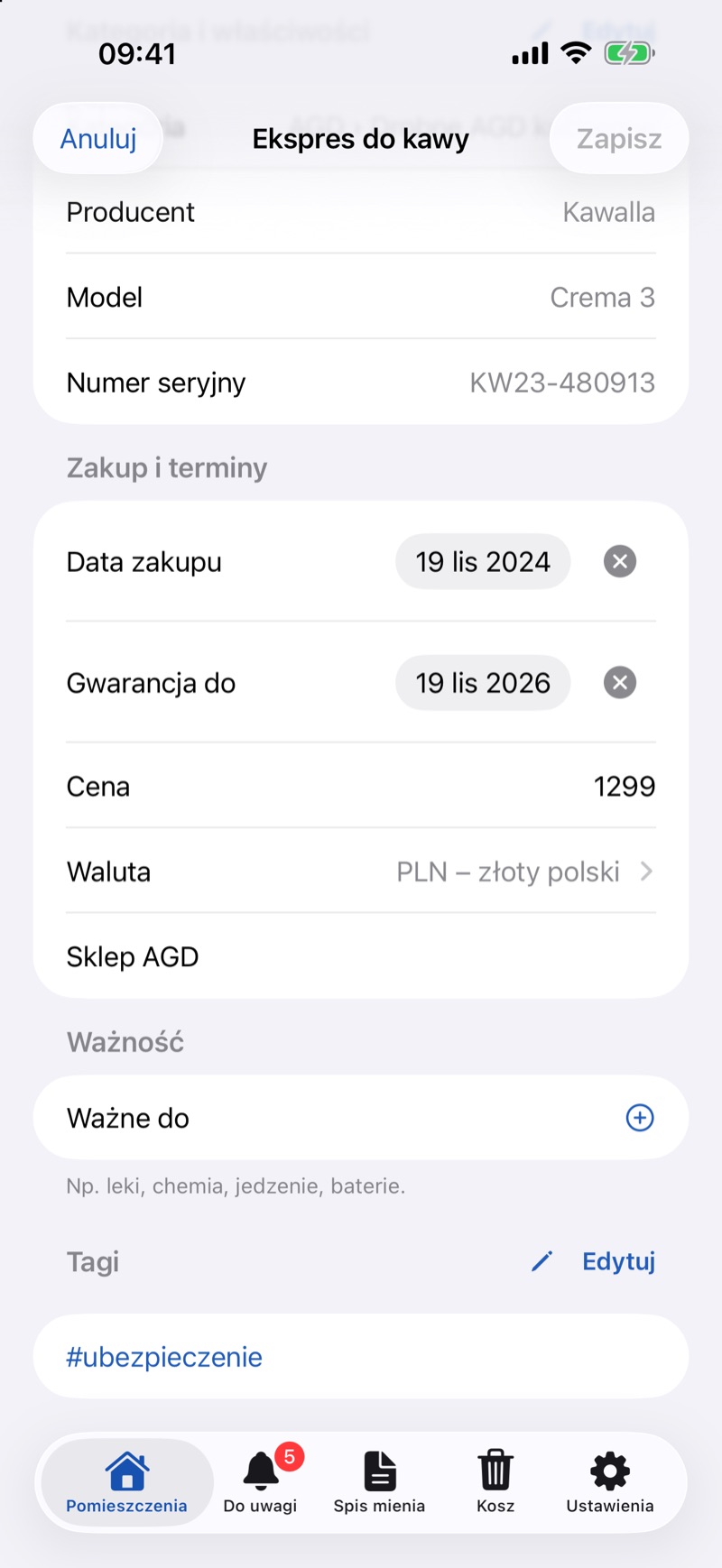
- Tap a group, or Edit next to its name. The group turns into fields in the same place. You can open several groups at once.
- In Condition and Availability, choose the Condition: New, Unused, Used, Needs Repair or Damaged / To Discard.
- In Purchase and Dates, set the Purchase Date and Warranty Until (the app suggests 2 years from the purchase), enter the Price, choose the Currency and enter the Store. Below, in the Expiry section, there's Expires On, for example for medicines, cleaning products or batteries. The cross next to a date removes it.
- In Tags, type a tag into the Add Tag field, such as "winter" or "for the garden", and confirm. Tags you've already used on other items appear below the field. To remove a tag, swipe it to the left.
- In Description, write anything worth remembering, such as "no charger".
- Tap Save at the top of the screen: it saves all open groups at once. If you tap Cancel, the app asks whether to discard your changes.
To rename the item, tap its name.
In the Browser
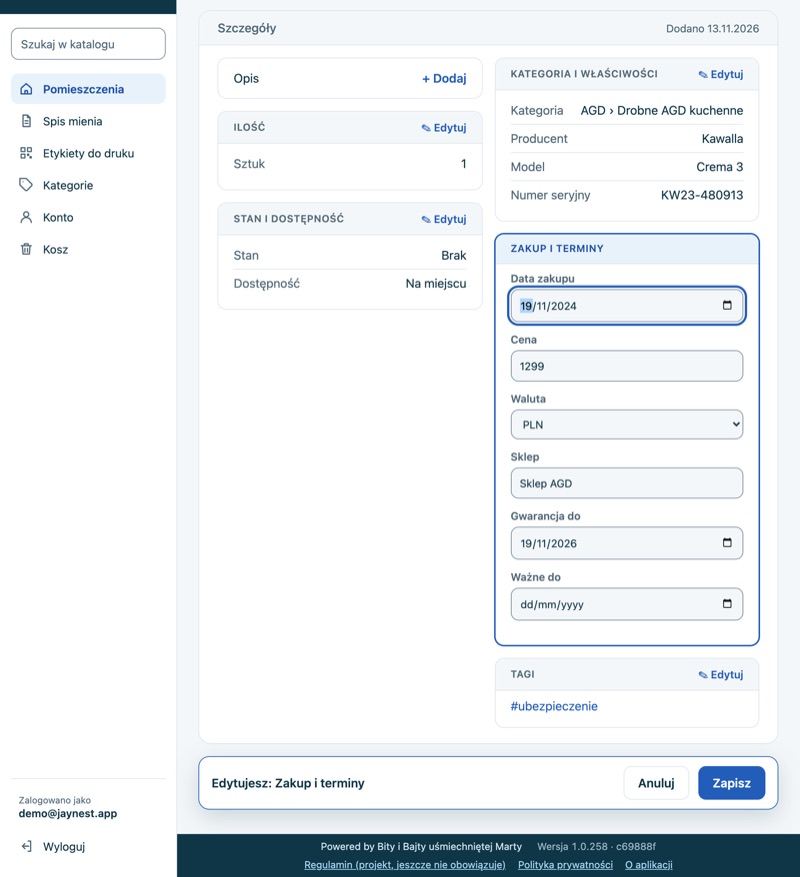
- On the item's page, click a card, such as Purchase and Dates, or Edit in its header. An empty card shows + Add.
- Fill in the fields. Press Enter or type a comma to add a tag, and click × next to a tag to remove it.
- Click Save in the bar at the bottom of the page. If you try to leave with unsaved changes, the page asks whether to save them.
Good to Know
- A photo of the receipt can fill in the purchase date, price and store for you (Receipt Photo: Purchase Date, Price and Store).
- The Needs Attention tab keeps an eye on warranty ends and expiry dates (Needs Attention: Warranties, Expiry Dates and Returns).
- The search also looks in tags, descriptions and store names (Search and Filters).
- You save a loan in the Condition and Availability group (Lending), and the stock of consumables in the Quantity group (Supplies).
- Enter the price in the currency it was paid in. The app doesn't convert amounts between currencies.