 JayNest
Your Own Subcategories
- iPhone and iPad
- Browser
Missing a category, such as Xbox games? You can add your own subcategory under any of the 19 main categories. With a JayNest account, you'll see it on all your devices and in the browser.
On iPhone
- On the item's screen, open the Category and Properties group and tap Category.
- Under a main category, such as Games and toys, tap Add Subcategory….
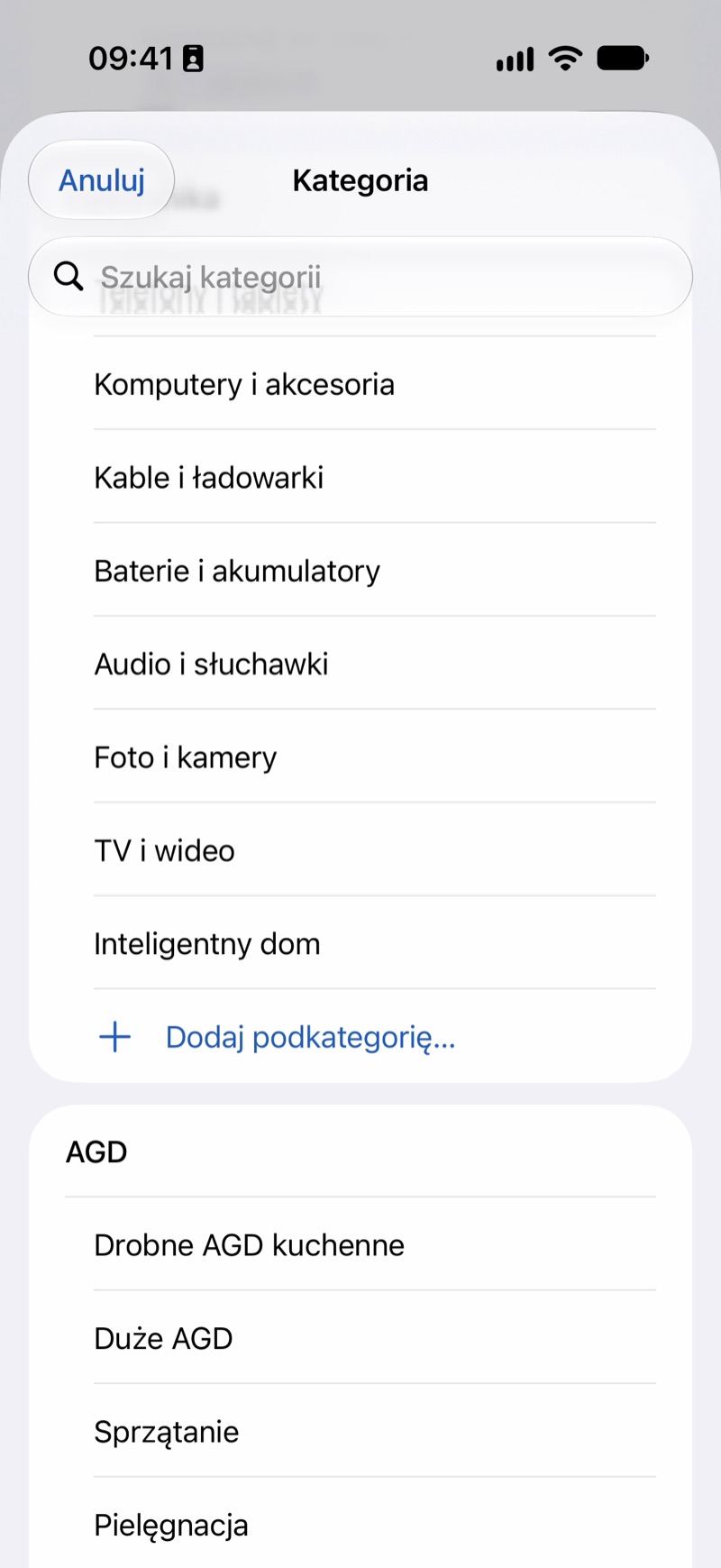
- Type a name, such as Xbox games, and tap Add. The new subcategory is set on the item right away. In the list, your own subcategories have a person icon.
- If a similar category already exists, the app asks: A similar category already exists. Choose Use “…” so your home doesn't end up with two "Cables" categories, or Create “…” if it's something different.
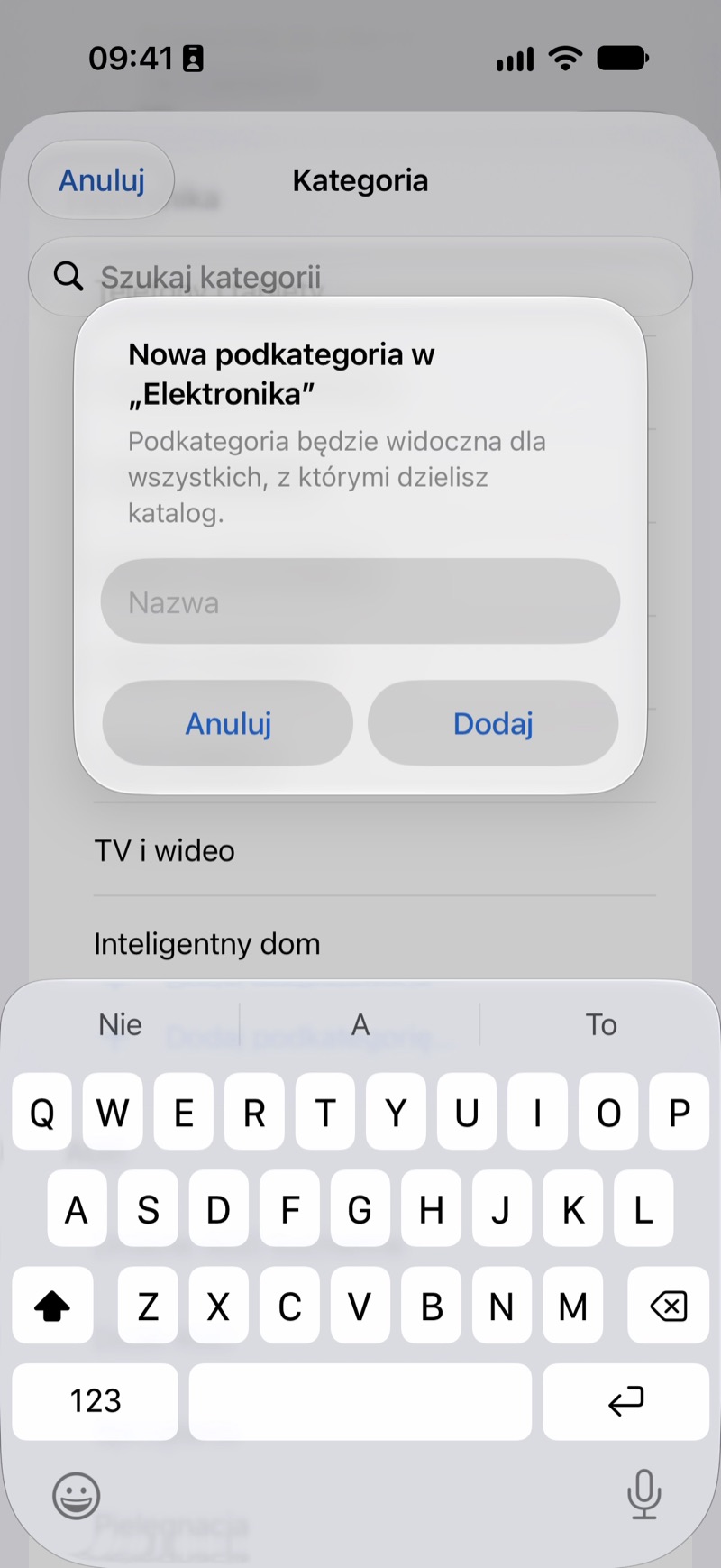
Faster: type the name into Search categories. If there's no such category, Add “…”… appears at the top of the list, with a choice of main category.
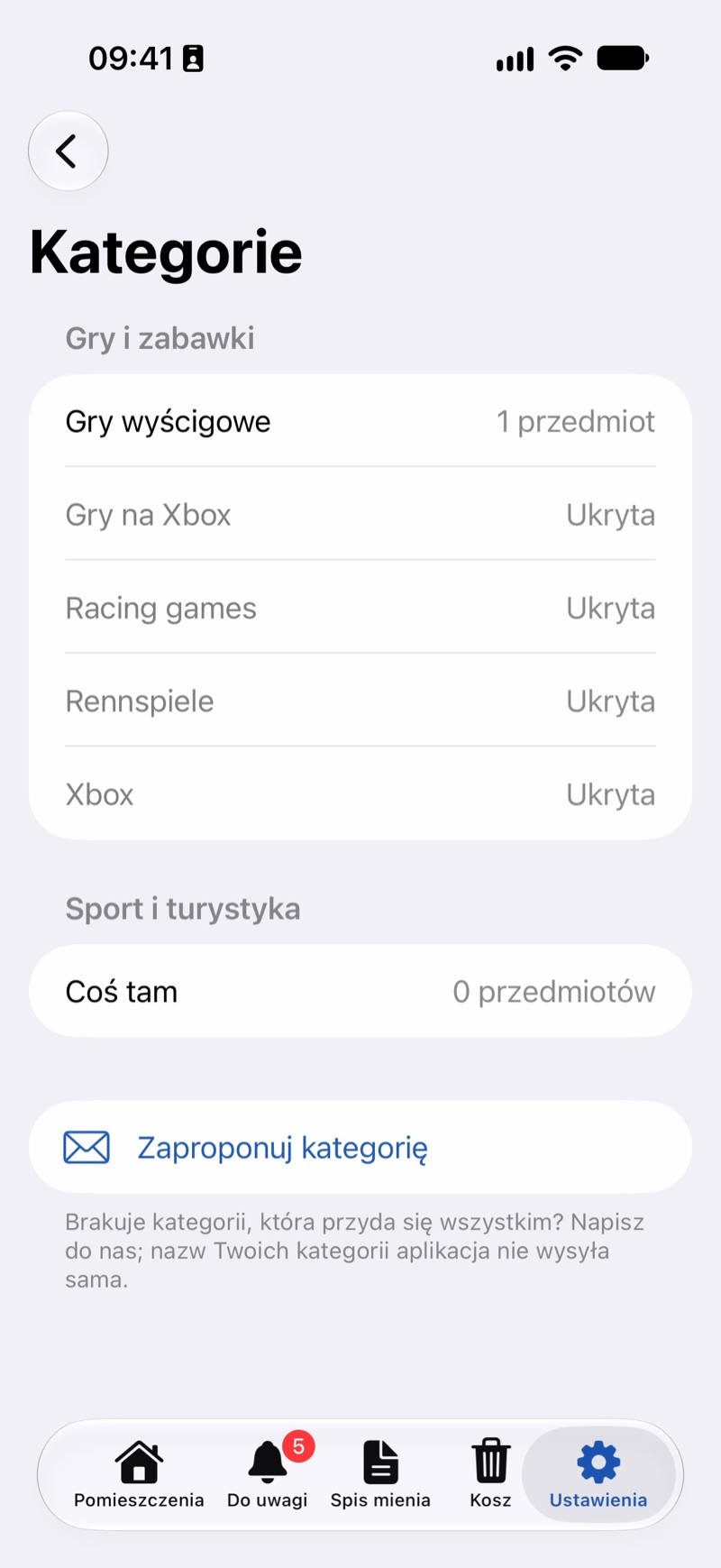
Renaming, merging and deleting are in Settings → Categories. Touch and hold a subcategory and choose Rename…, Merge With… or Delete.
In the Browser
- On the item's page, open the Category and Properties card and click Add subcategory… under the Category field.
- Choose the Main category, type the Name and click Add.
- Renaming, merging and deleting are on the Categories page in the app's menu. Each subcategory has Rename, Merge with… and Delete buttons.
Good to Know
- Delete only hides the subcategory from the list you choose from. Items that have it keep it. You can bring a hidden one back in the same place with Restore.
- Renaming to a completely different name creates a new subcategory: the items move to it, and the old one disappears from the list. Merge With… moves the items to another category under the same main category.
- Suggest a Category (in Settings → Categories, and on the Categories page in the browser) opens an email to us when a category that would be useful to everyone is missing. The app never sends your category names by itself.
- Only subcategories can be your own, under one of the 19 main categories (Categories and Properties).