 JayNest
Photos: Adding, Cropping, Deleting
- iPhone and iPad
- Browser
You can add photos from the camera or your library to every room, container and item. You crop them before they're saved, and then view them full screen.
On iPhone
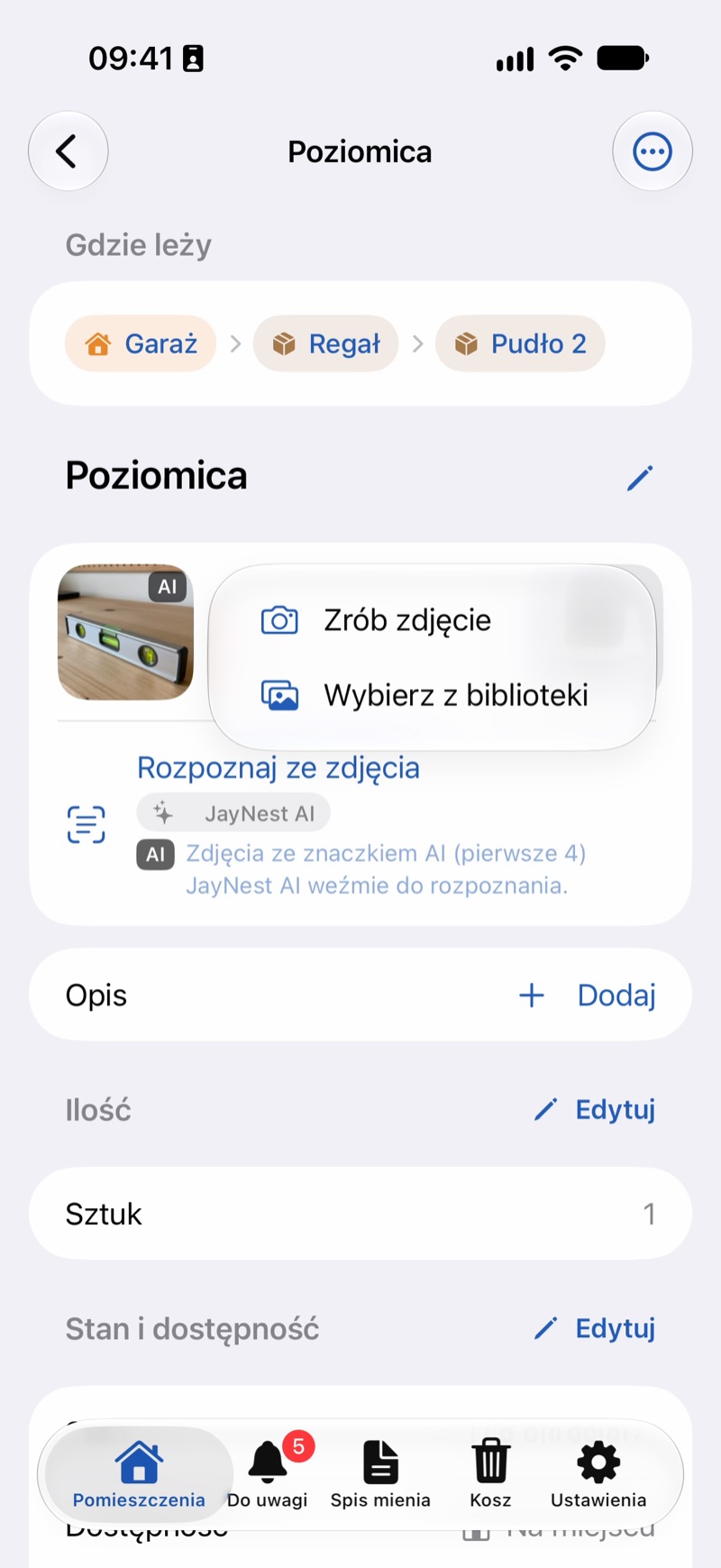
- On the thing's screen, tap the camera tile at the end of the photo strip and choose Take Photo or Choose from Library (up to 10 photos at once).
- Before saving, Crop opens. Drag the frame or its corners and tap Done. Whole Photo brings back the full frame. With camera photos, tap Next Photo to take another one, or Finish.
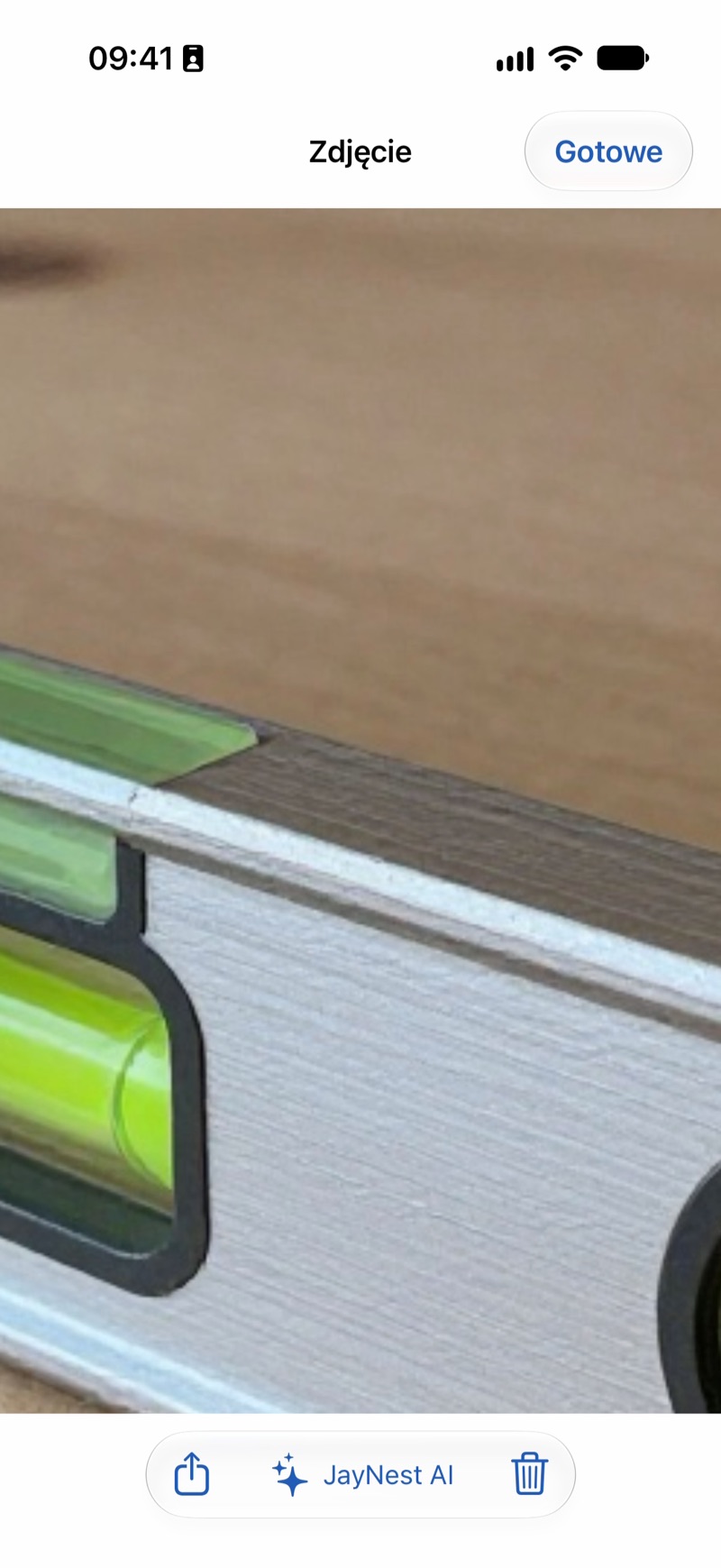
- Tap a thumbnail to view the photo full screen. Pinch to zoom in, and swipe sideways to go to the next one.
- The first photo is the main one: it's the thumbnail in lists. To change it, open another photo and tap Make Main Photo.
- To delete a photo, open it, tap Delete Photo and confirm.
In the Browser
- On the thing's page, click + Add Photos and choose files from your computer. You can also drag them onto the photo strip.
- Each photo first opens in the Crop window. Drag the frame or its corners and click Done. Whole photo brings back the full frame, and Skip leaves that photo out.
- Click a thumbnail to view the photo enlarged. The arrows switch between photos, and Make Main Photo and Delete Photo are right there.
- You can also change the order by dragging thumbnails. The first photo is the main one.
Good to Know
- Cropping works at full resolution, before the app shrinks the photo to save it, so you can cut out even a small serial number. A saved photo can't be cropped anymore: delete it and add it again.
- On the phone, you can turn off cropping after adding a photo in Settings → Crop After Adding a Photo (in the Photos & AI section).
- A deleted photo goes to the Trash, and you can restore it for 30 days (Trash: Restoring and Deleting Forever).
- After you add a photo to an item, the phone app may ask Recognize What's in the Photo? and suggest fields to fill in (How Recognition Works). You can turn this question off in Settings → Recognition.
- With a JayNest account, photo files upload and download while the app is open. Until then, the thumbnail of a photo from another device stays gray (Sync).
- In the browser, only Safari opens HEIC photos from an iPhone. In other browsers, choose JPEG or PNG.