 JayNest
Categories and Properties: How to Describe a Drill Bit, Shoes or a Figure
- iPhone and iPad
- Browser
You choose a category from a list, such as Tools › Drill bits and accessories, and the app suggests matching properties: diameter, length and material for a drill bit, size (EU), color and season for shoes, series and character for a figure. None of them are required.
On iPhone
- On the item's screen, tap the Category and Properties group (when it's empty, it shows Add next to its name). The group turns into fields.
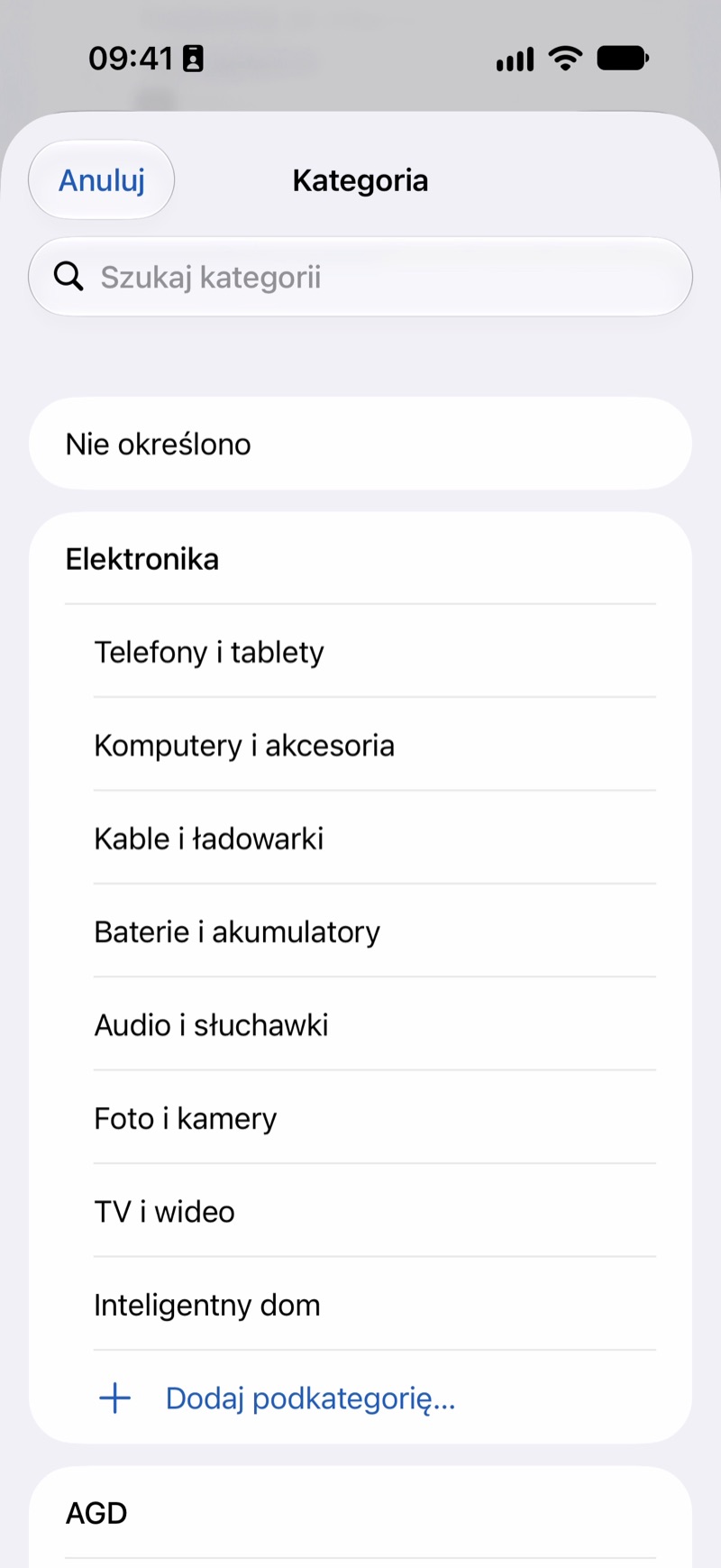
- Tap Category. A list of 19 main categories and 90 subcategories opens. You can type a name into Search categories. Choose, for example, Drill bits and accessories under Tools.
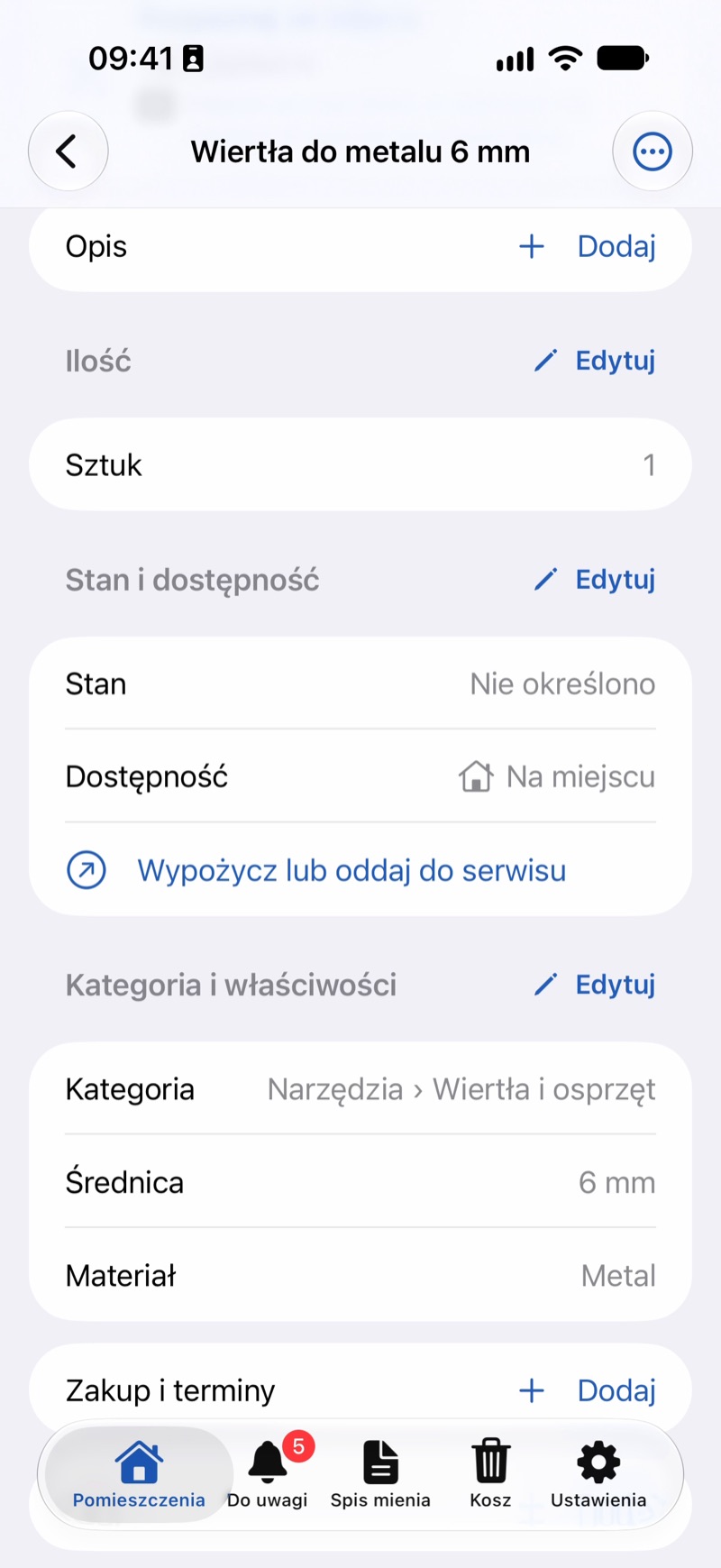
- The category's properties appear below it. Fill in only the ones you'll find useful. Numbers have a unit picker, so 0.5 cm and 5 mm are the same diameter.
- To add a missing property, tap Add Another Property in the Other Properties section. The cross next to a field removes its value.
- Tap Save at the top of the screen.
In the Browser
- On the item's page, click the Category and Properties card or Edit in its header. An empty card shows + Add.
- Choose a category from the Category list. The suggested properties appear below it.
- Enter numbers in the unit shown next to the field name, such as Diameter (mm). You can add another property from the Add Property… list.
- Click Save in the bar at the bottom of the page.
Good to Know
- Nothing is lost when you change the category: the values you filled in stay with the item, on the phone in the Other Properties section.
- The search also finds property values, such as "Bosch" or "metal", and the Tools category filter includes its subcategories, such as drill bits (Search and Filters).
- Missing a category? You can add your own subcategory under any main category (Your Own Subcategories).
- A photo can also suggest the category and properties (How Recognition Works).